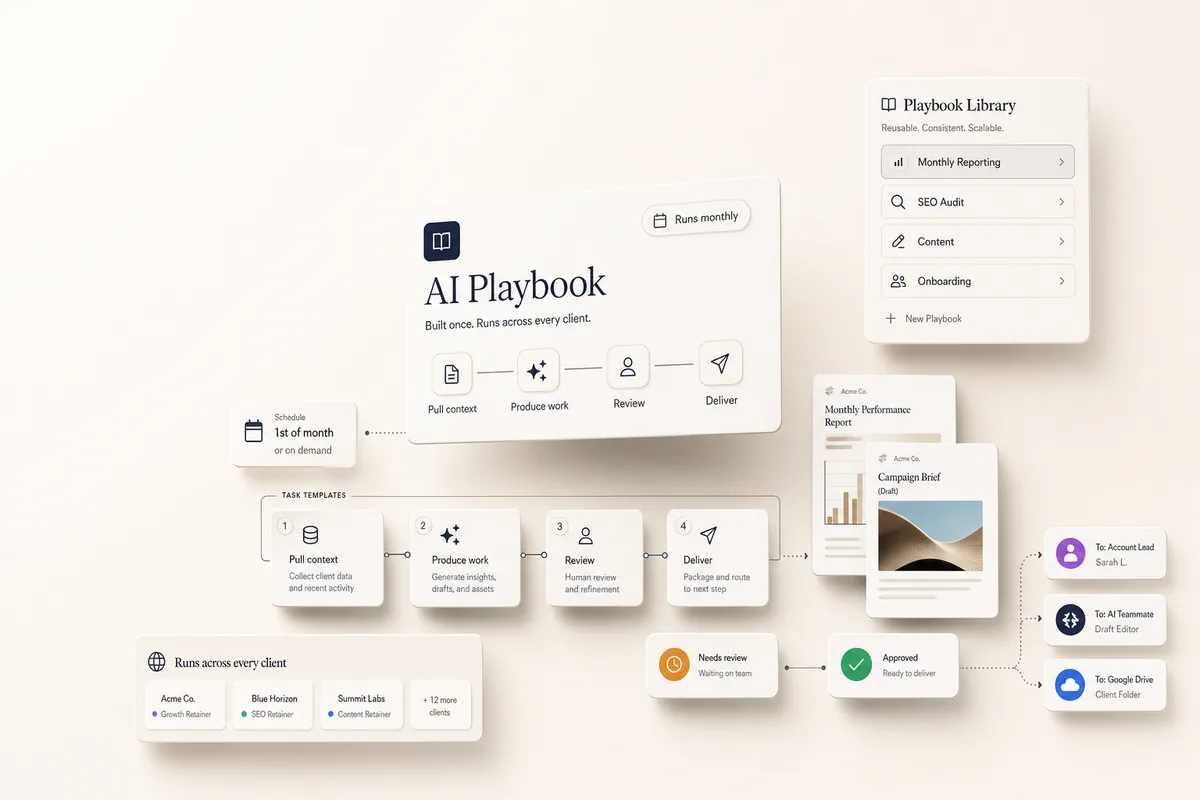
Schedule Recurring Client Work Once and Let AI Run It
Learn how to automate recurring tasks and client workloads using the AI Task Scheduler. Covers creating scheduling tasks, writing AI prompts, reviewing upcoming work, and tips for staying organized.
Automate Recurring Tasks and Client Workloads with AI
Recurring work is part of every agency: weekly client meetings, monthly reports, routine internal ops. Lifted Work’s AI Task Scheduler and Autocomplete features let you set up these tasks once and have them run on schedule without logging in.
This guide walks you through booking recurring tasks, automating schedules, and setting up onboarding workflows.
Step 1: Create the Scheduling Task
Start by creating a new task that will act as the trigger for your scheduler.
Select the client (or your internal agency “client” for non-client work)
Assign a person of record (who oversees the automation)
Set the start date for scheduling (e.g., the 1st of the upcoming month)
Toggle Autocomplete ON (if you want the task to run automatically at the scheduled time)
This task won’t be the actual work. It’s the scheduler that creates the real tasks based on your AI prompt.
Step 2: Use a Lifty Prompt to Schedule Work
In the Lifty Prompt field, write the AI command to create the recurring tasks. Enable the Run on complete toggle so the prompt executes when the scheduler task is marked complete.
Example prompt:
Create the following tasks:
@One Hour Meeting every Monday next month assigned to @Vivian
@Campaign Build first Friday of next month assigned to @Rick
@AI Monthly Review Email on the last day of next month assigned to @Rick
Tip: Use @ to reference saved Task Templates and People. Templates bring in estimated time, instructions, and other preset configurations. (Clients can be @mentioned in the AI Chat, but not in the Lifty Prompt field on a task.)
Why Plan Just One Month at a Time?
Recurring work can change: clients upgrade, pause, or churn. To stay flexible and avoid clutter, only book one month at a time.
Automate this further by adding a duplicate prompt at the end of your scheduler:
Duplicate this task for the last day of next month
Your scheduler re-creates itself every month, using the same prompts.
Example: Full AI Scheduling Prompt
Create the following tasks:
@One Hour Meeting every Monday next month assigned to @Vivian
@Campaign Build on the first Friday of next month assigned to @Rick
@AI Monthly Review Email on the last day of next month assigned to @Rick
Then duplicate this task for the last day of next month.
This pattern keeps your team and clients scheduled month after month.
Step 3: Mark It Complete (or Let It Autocomplete)
If you toggled Autocomplete, the scheduler task will run at the exact time and date you scheduled, even if you don’t log in.
Or, you can manually mark the scheduler as complete to test your prompt before enabling Autocomplete.
Once triggered:
Tasks are created with the dates and assignments you specified
Milestones (if included) are set
AI instructions are executed
As tasks are completed, they’ll appear in the client’s feed
Step 4: Review Upcoming Work
From the Tasks screen:
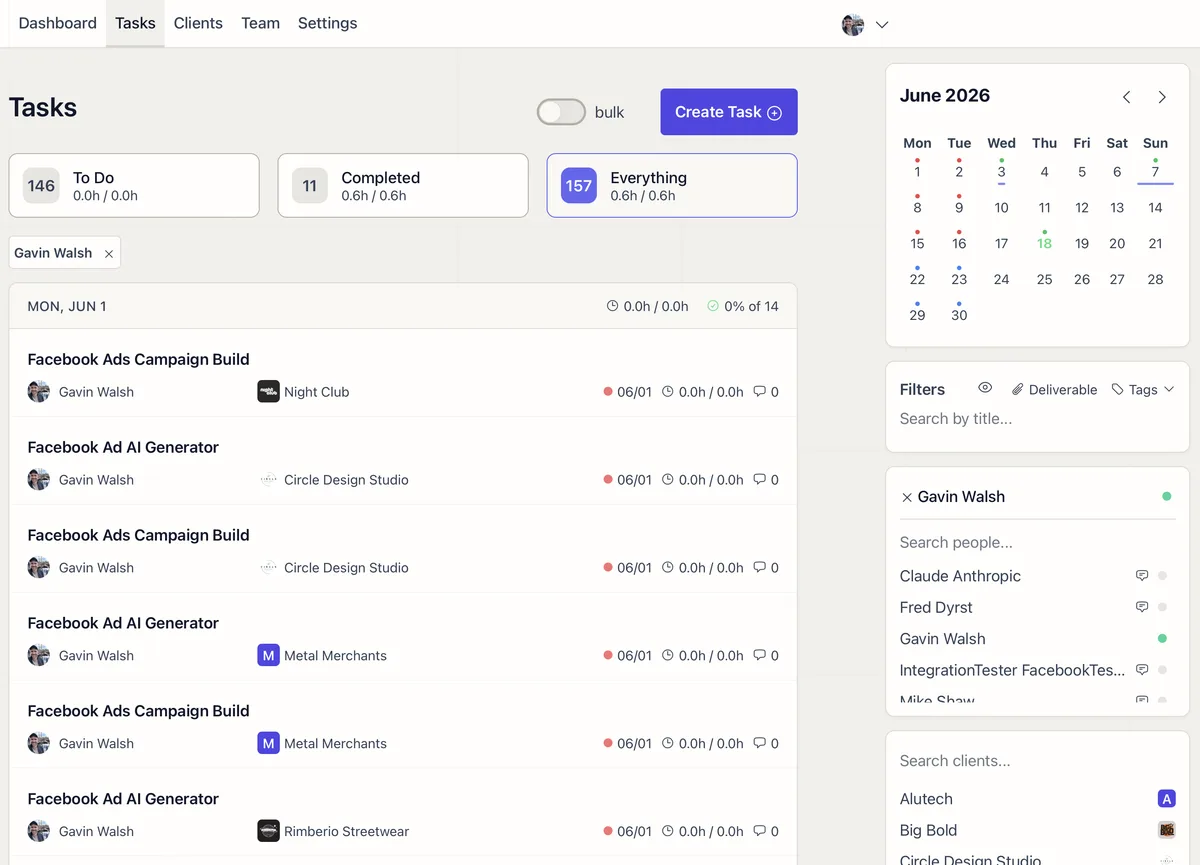
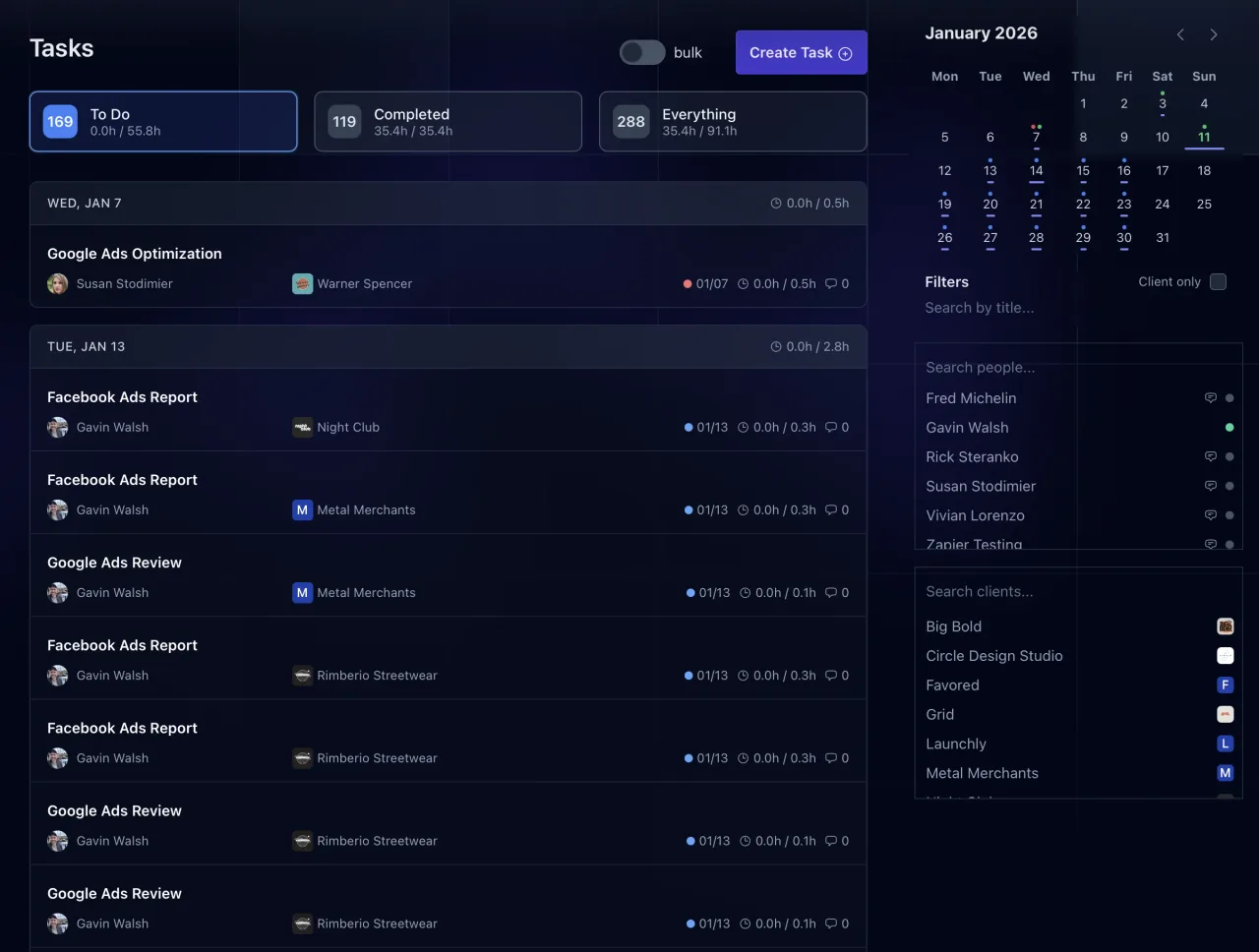
Navigate forward by month to see future tasks
Filter by client or team member to narrow the view
You’ll see the tasks the scheduler created with the dates and assignments from your prompt. Use this for planning team capacity and prepping for client check-ins.
Bonus: Make Recurring Templates
If you plan to run the same scheduler each month:
Turn it into a Task Template under Settings > Templates
Set Autocomplete ON
Add your prompt in the Lifty Prompt field and enable Run on complete
Use relative time phrases (e.g., “every Friday next month”)
Anyone on your team can apply the template without rewriting prompts.
Finding Autocomplete Tasks
By default, Autocomplete tasks are hidden from normal views so they don’t clutter your workspace. If you need to find them:
Search by task name in the search bar
Navigate directly from a client’s or team member’s task links, which exclude autocomplete tasks by default
This is important if you can’t find your scheduler task after it’s executed.
Onboarding Tasks vs. Recurring Work
Recurring Schedulers are for ongoing, repeatable work (meetings, reports, reviews).
Create a milestone for “Kickoff Call” one business day from now
Create task “Gather brand assets” due in 2 days
Create task “Design homepage draft” due in 5 days
No duplication needed here. Just build a complete one-time workflow.
Internal Agency Work
Need to assign recurring work to yourself or your team that isn’t client-specific?
Create a client called Your Agency Name
Use AI scheduling to assign internal work (reporting, marketing, admin)
Manage your business the same way you manage client accounts
Tips for Recurring AI Scheduling
Book 1 month ahead: keeps things flexible in case clients upgrade, pause, or churn
Use @ mentions: pulls in saved task templates, estimated time, and instructions automatically
Use relative time phrases: so the scheduler sets dates correctly even when reused monthly
Avoid overloading the client feed: too many small tasks can drown out important milestones
Duplicate schedulers monthly: automates recurring planning without reconfiguring every time
Test before scaling: manually run your first AI prompt to confirm everything works before enabling Autocomplete
Once you’ve tested your first scheduler, duplicate it and let it run month after month.
FAQ
Frequently asked questions
What is the difference between Autocomplete and Run on complete?
Autocomplete runs the current task's AI instructions at its due date. Run on complete fires the Lifty Prompt after that task is completed, whether completion was manual or automatic. A scheduler often uses both: one runs the trigger and the other creates the next work.
Why schedule recurring agency work only one month ahead?
Client scope, staffing, priorities, and start dates change. A rolling month provides enough visibility for capacity planning while limiting the cleanup required when an account pauses or work moves.
What happens to scheduled tasks if a client pauses or cancels?
Future tasks do not become appropriate just because they were created automatically. Review the next month's schedule before it runs, remove or reassign work that no longer applies, and stop the scheduler that would recreate it.
Can the AI task scheduler be used for internal agency work?
Yes. Create an internal agency account and use the same task templates, owners, relative dates, and review steps for operations, finance, hiring, or the agency's own marketing. Keep client-only data out of internal task prompts.