The Client’s Home Tab
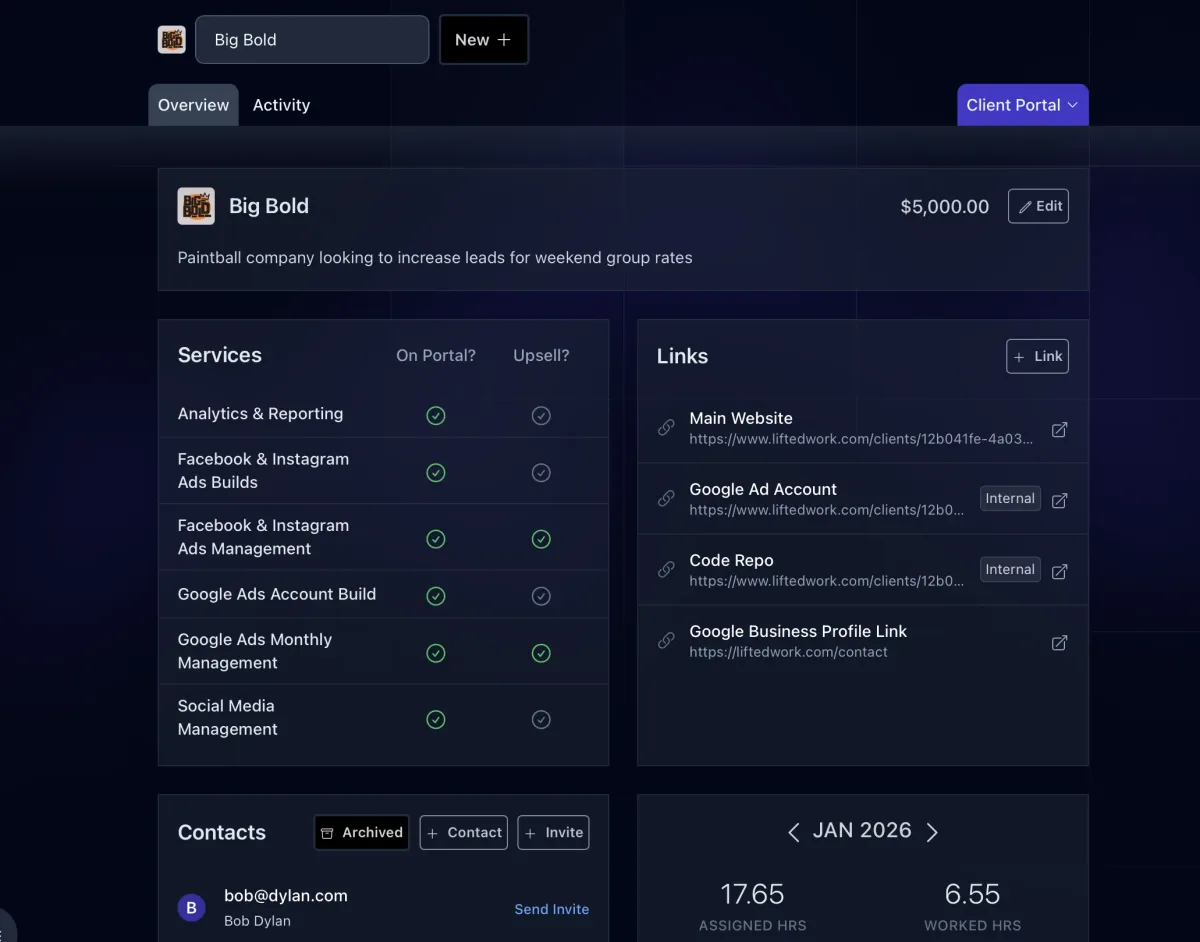
Overview is where you land when you open a client, and it carries the things you reach for most. Everything more specific lives one tab over: Work, Comms, Feed, Notes, Reports, Deliverables, and Assets.
Description: The client’s objectives, the services you provide, and key background. Visible to your team and to the AI, and it follows every task for context.
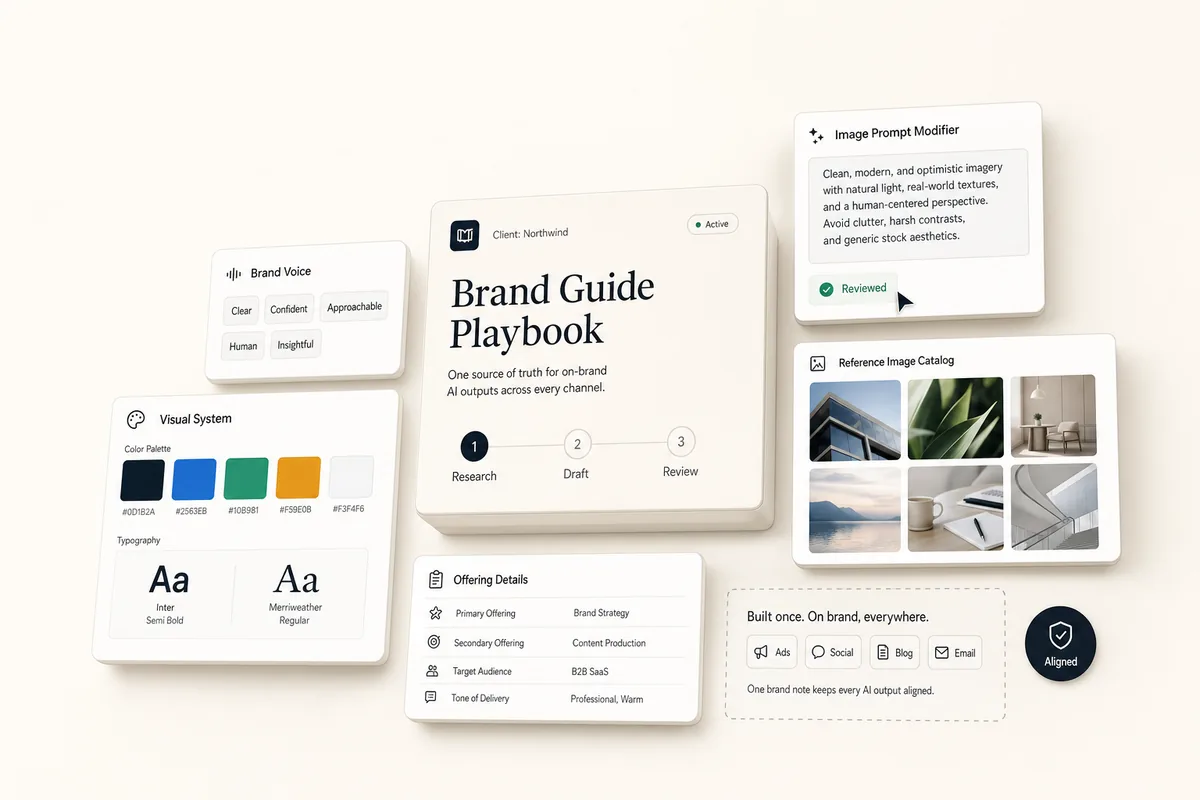
Brand: Add the client’s website and AI extracts their colors, fonts, and logos automatically. Your team and the AI reference this brand when producing deliverables.
Contacts: The client team members with portal access. When drafting emails through Lifty, you pick the recipient from this list.
Links: Store every URL your team needs: the website, dev sites, ad accounts, dashboards. Mark each one client-facing or internal. Links also appear on every task for that client, so anyone can jump straight from a task to the right account.
Services and Portal: Assign active services, flag upsells, and configure which portal tabs the client sees and whether access is public or private. Services and Upsells covers pricing and purchase links; the Client Portal covers what the client experiences.
Statuses and Custom Fields: Track your own fields, like blog quotas or ad budgets, defined in Settings > Statuses.
Milestones, Invoices, and Stats: Upcoming and completed milestones, invoices, and hours assigned vs. worked, all at a glance.
Everything Else Is a Tab Away
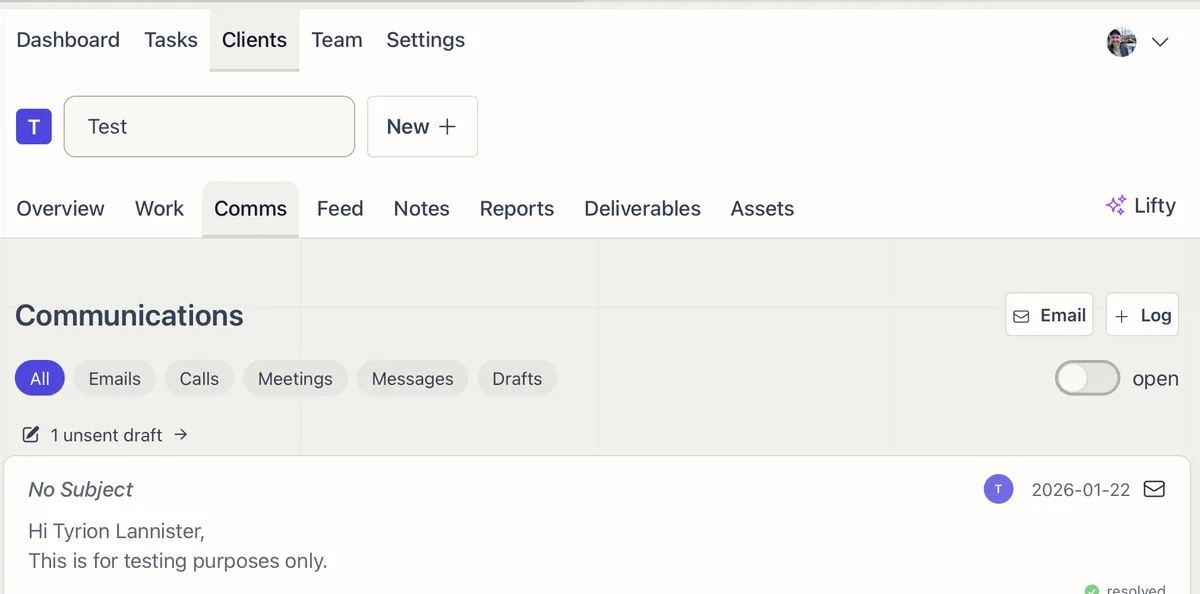
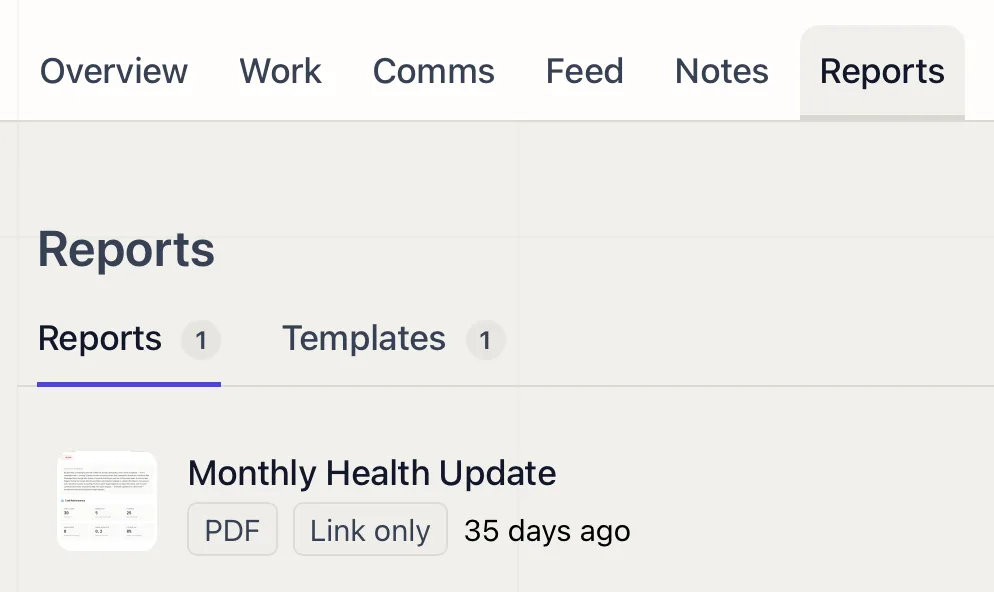
Conversations live in Communications. Delivered work lives in the Feed. Internal context lives in Notes. Reports and templates live in Reporting, files in Assets, and review and sign-off in Deliverables. Each tab drops you into the detail without losing the client.