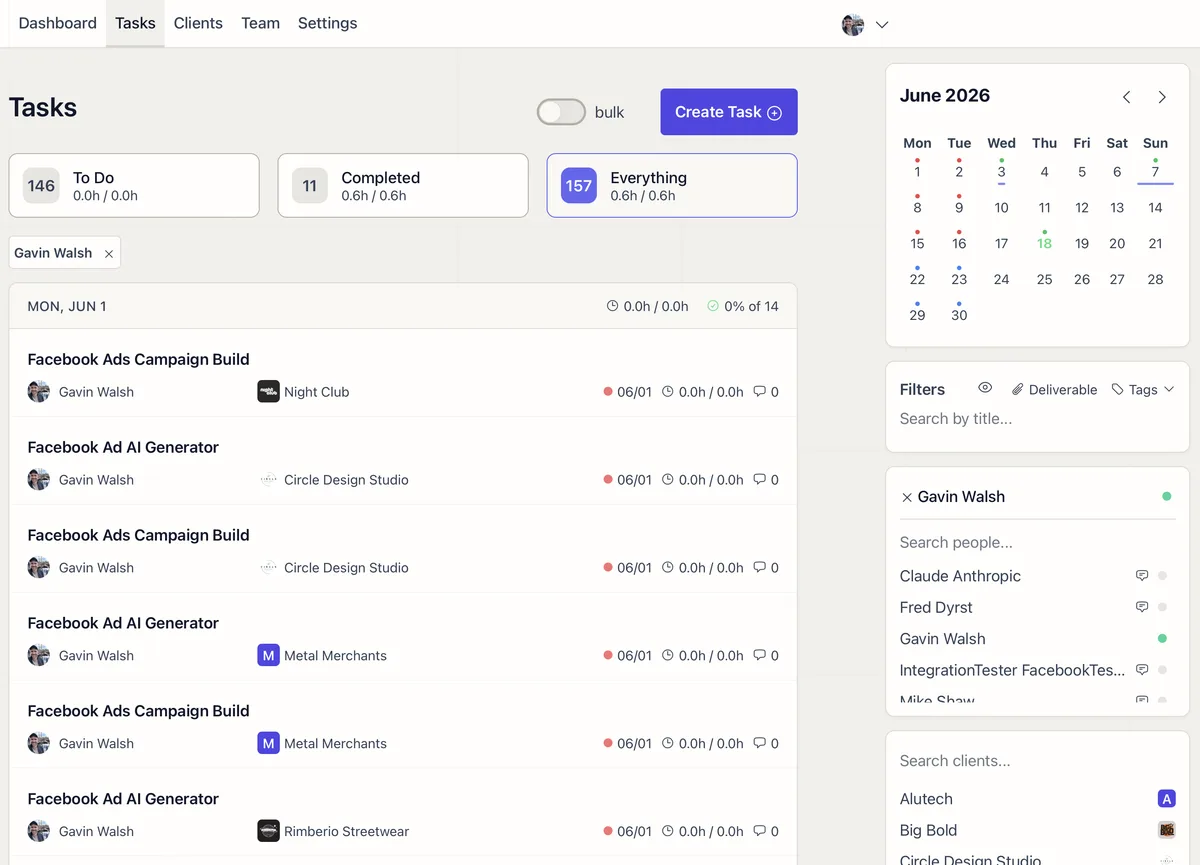
Why is a task missing from my agency task list?
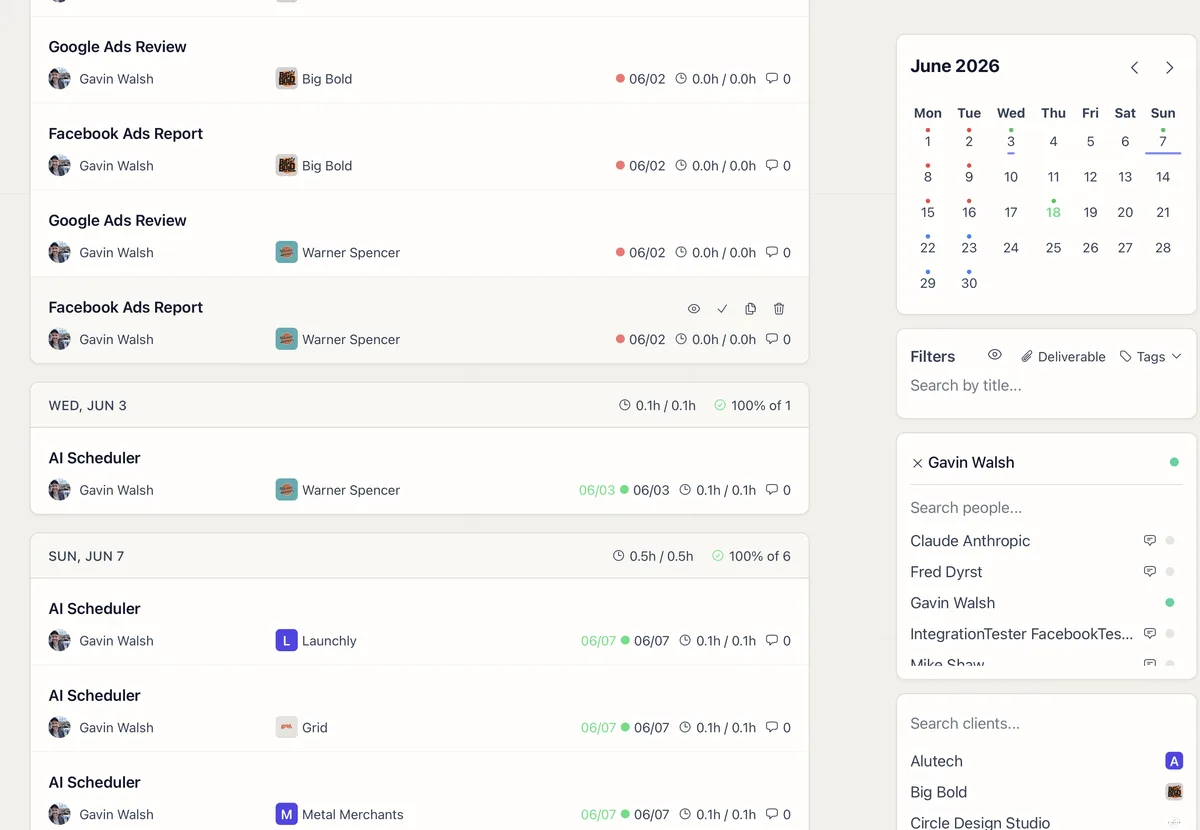
The usual cause is a saved date, status, client, person, or tag filter. A task may also be completed, assigned to another client, or hidden from the default view because it is an Autocomplete task. Clear filters before assuming the task is gone.
Does task search look through tasks hidden by other filters?
No. Search narrows the tasks already allowed by the active filters. Clear the client, person, status, and date filters first when you want to search the widest set of tasks.
Who can help find a task I still cannot see?
Ask an agency admin to search across the account. Tell them the likely task name, client, assignee, due date, and whether it may already be complete so they can distinguish a visibility issue from a deleted or renamed task.