
Who can use the Lifty AI sidebar?
Lifty is available to agency Admins and Managers. Employees and Workers do not see the AI sidebar, which keeps broader client and agency actions limited to roles that need them.
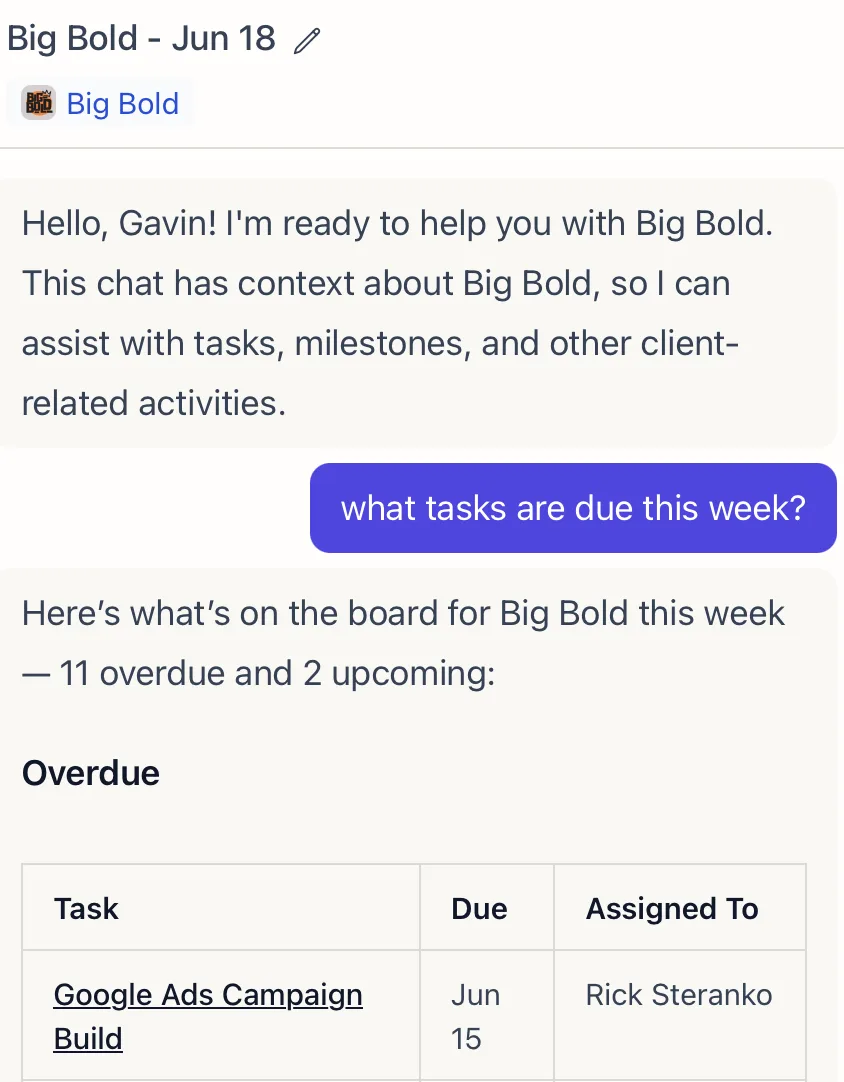
Lifty is a built-in chat assistant for agency admins and managers. Create tasks, generate milestones, draft emails, and pull analytics from a single sidebar.
Lifty is a built-in AI chat assistant available to agency admins and managers. You can use it to:
In the bottom-left corner of any page, you’ll see three floating buttons:
Click the AI icon to open the Lifty panel. It slides up with your most recent AI chat session, or starts a new one. The panel header shows “Lifty AI” at the top.
Type @ in your prompt to reference:
Create @Weekly Client Check-In every Monday next month for @ClientName assigned to @TeamMember
Create a milestone called “Website Launch” for next Friday for @ClientName
How many hours were spent on SEO tasks for @ClientName last month?
Draft an email to @ClientName about the monthly report
Lifty pulls recipient info from Client Contacts (set up in the client’s overview). You’ll choose the recipient from the contact list when sending.
FAQ
Lifty is available to agency Admins and Managers. Employees and Workers do not see the AI sidebar, which keeps broader client and agency actions limited to roles that need them.
Open the sidebar from a client area or @mention the client in your message. Lifty can then use that client's profile and the records available to its tools, rather than relying on an ambiguous name in the prompt.
Lifty can draft an email using the client's contacts and account context. Review the recipient, facts, tone, and links before sending so an automated draft does not become an unreviewed client communication.
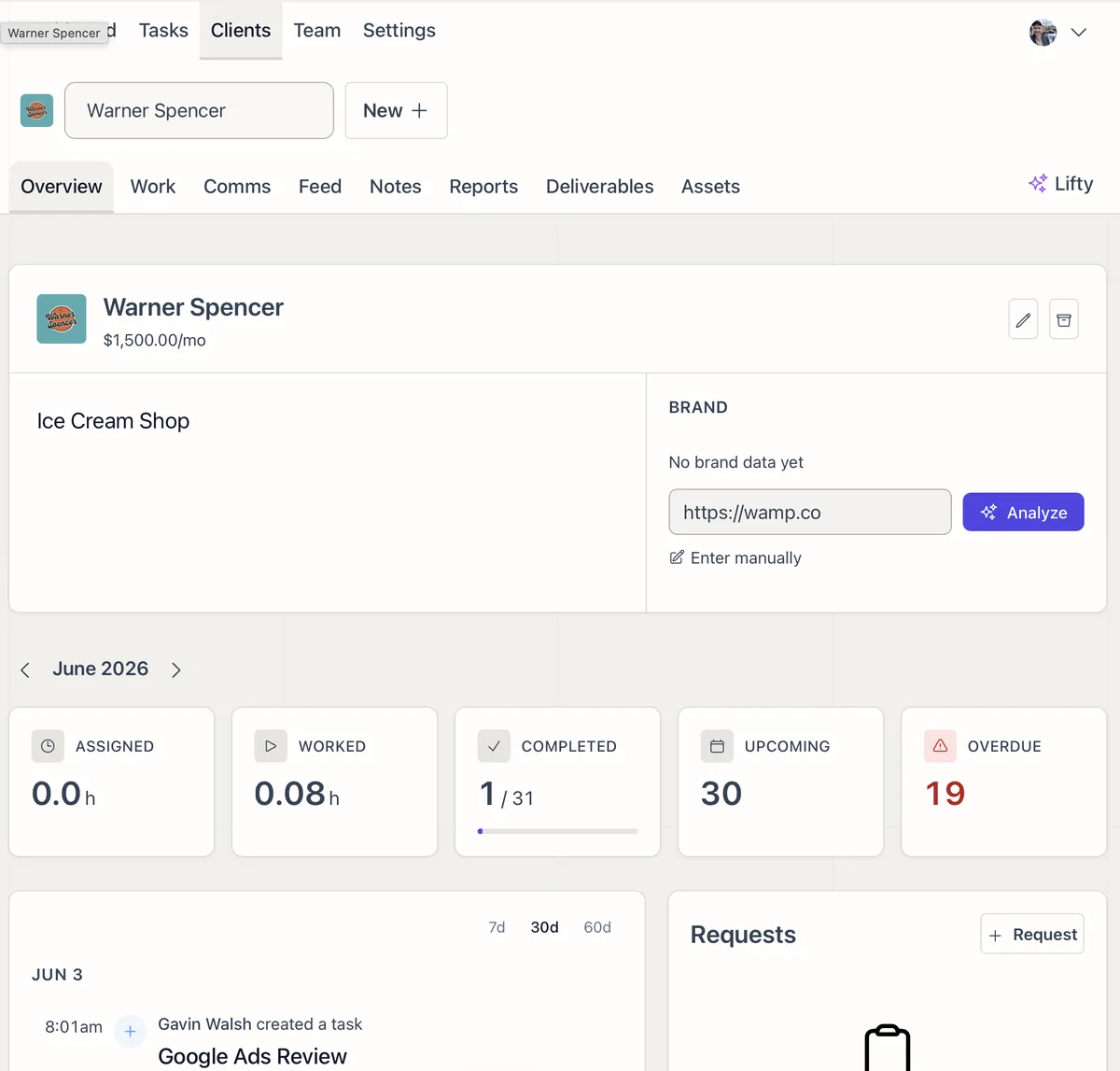
A step-by-step process for setting up new clients in Lifted Work, from creating the client to previewing their portal.
 02
02
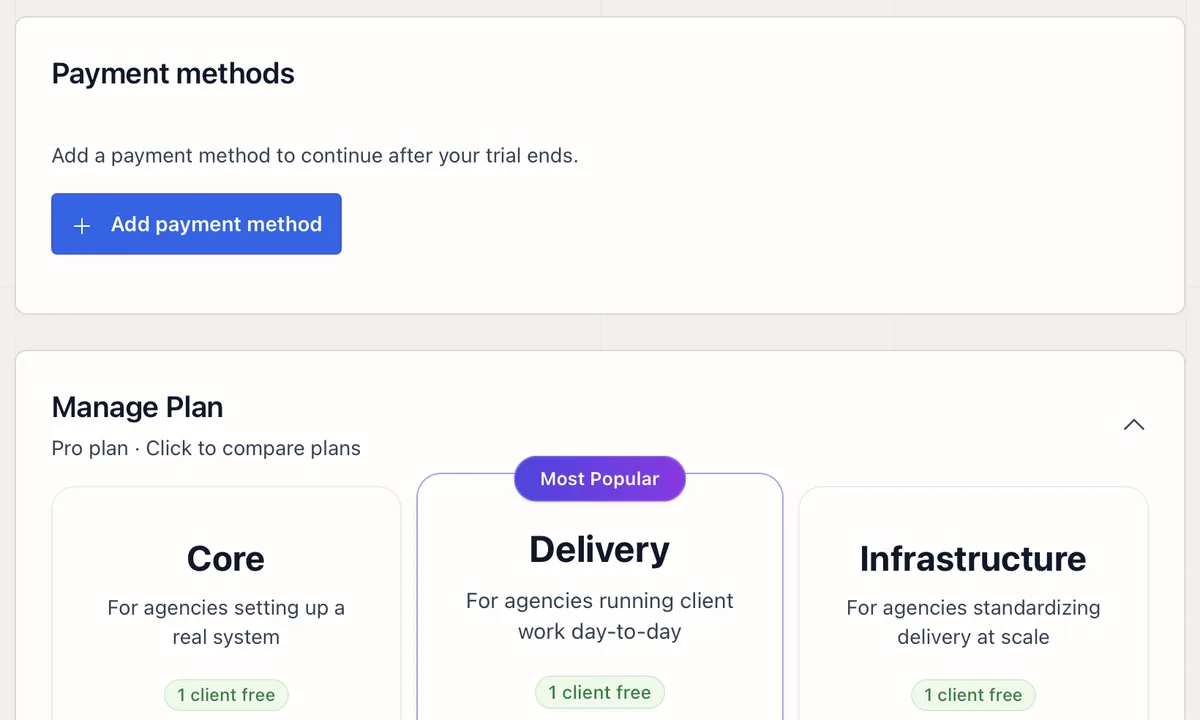
View your plan, update payment methods, monitor usage, and resolve failed payments. Admin access required.
 03
03
An AI assistant that already knows your clients: their brand, work, emails, analytics, and history. Ask it to summarize, draft, report, or build the next task.
04
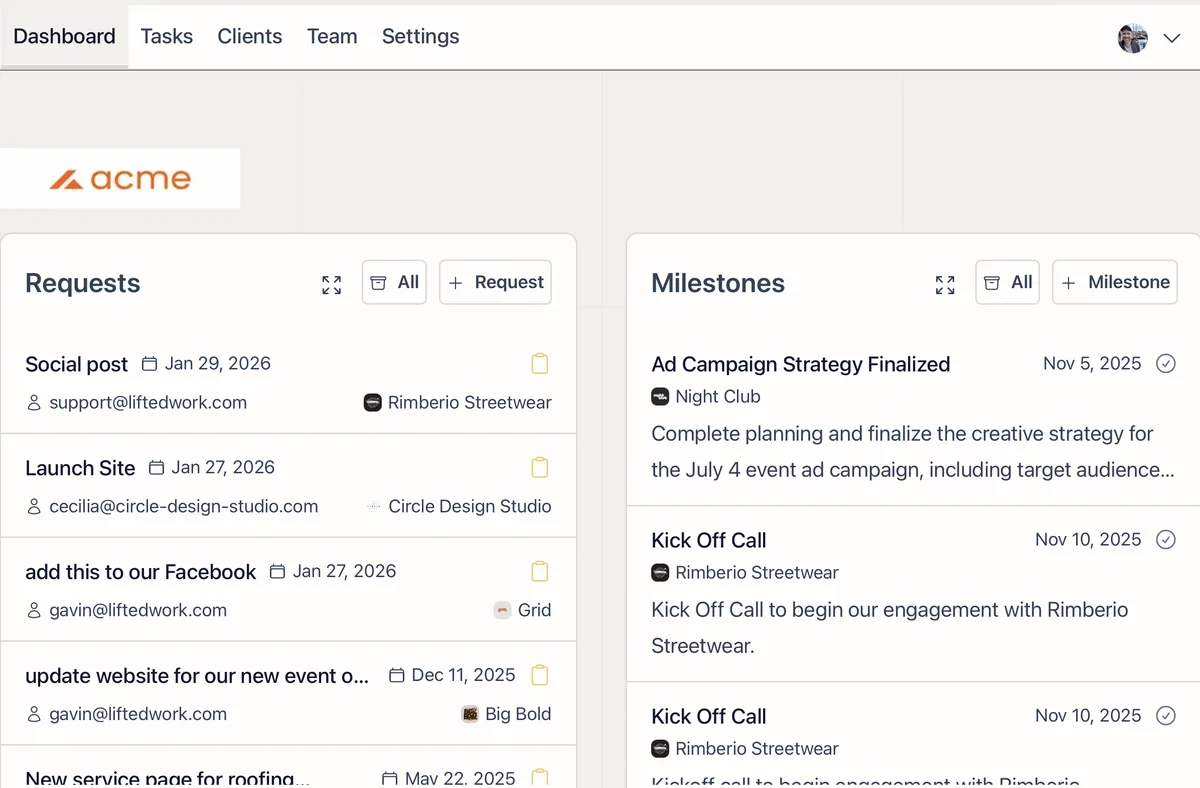
Your daily starting point. Requests, milestones, correspondence, monthly stats, team analytics, client analytics, and @mentions in one view.