
Who can change the Lifted Work plan or payment method?
An agency Admin can manage the plan, card, invoices, and billing status from Settings > Plan. Managers, Employees, and Workers do not have billing access.
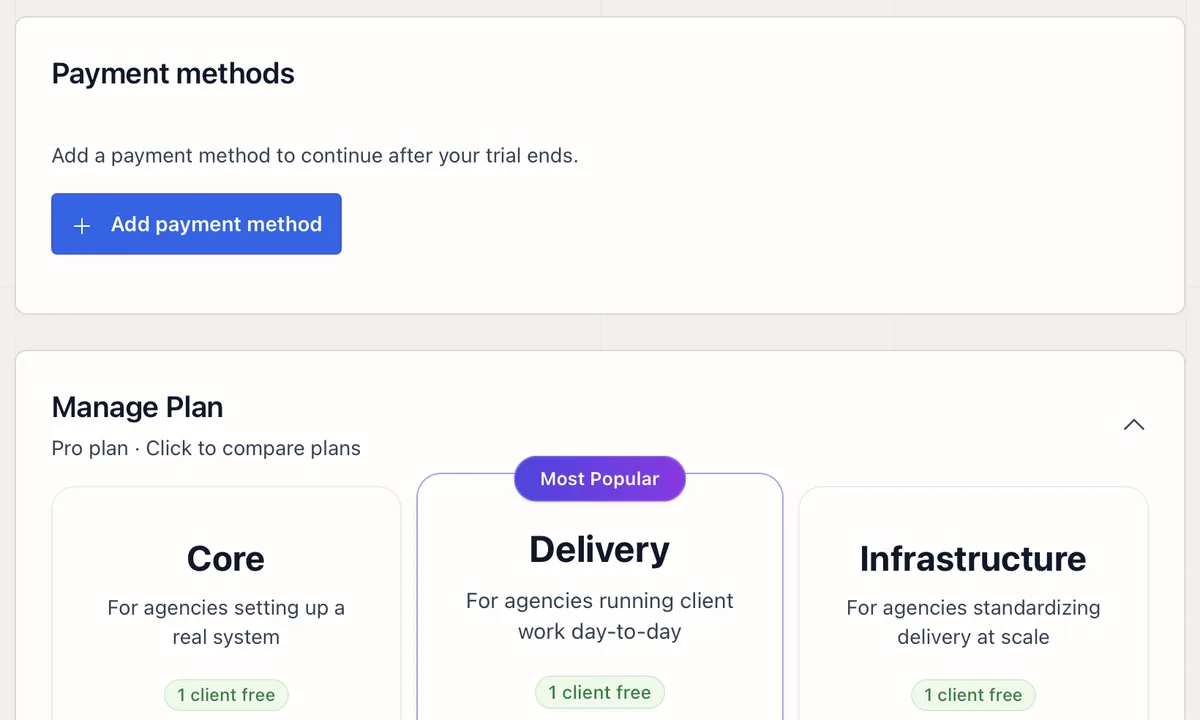
View your plan, update payment methods, monitor usage, and resolve failed payments. Admin access required.
Go to Settings > Plan. You’ll see your current plan, billing period, usage stats, and payment history.
Change your plan at any time from Settings > Plan.
Add or update your credit card in Settings > Plan. Changes apply to all future charges.
Monitor your usage against your plan limits on the billing page:
View and download past invoices from the billing page. Each invoice shows the billing period, amount, and payment status.
Contact support if billing issues persist after updating your payment method.
FAQ
An agency Admin can manage the plan, card, invoices, and billing status from Settings > Plan. Managers, Employees, and Workers do not have billing access.
A downgrade applies at the end of the current billing period. An upgrade takes effect immediately, so check the plan details and active-client usage before confirming a change.
Update the payment method in Settings > Plan, retry the charge from the billing page, and confirm the invoice status changes. Contact support if the retry still fails or the account remains past due.
How Admin, Manager, Employee, and Worker roles control what each person on your team can see and do.
 02
02
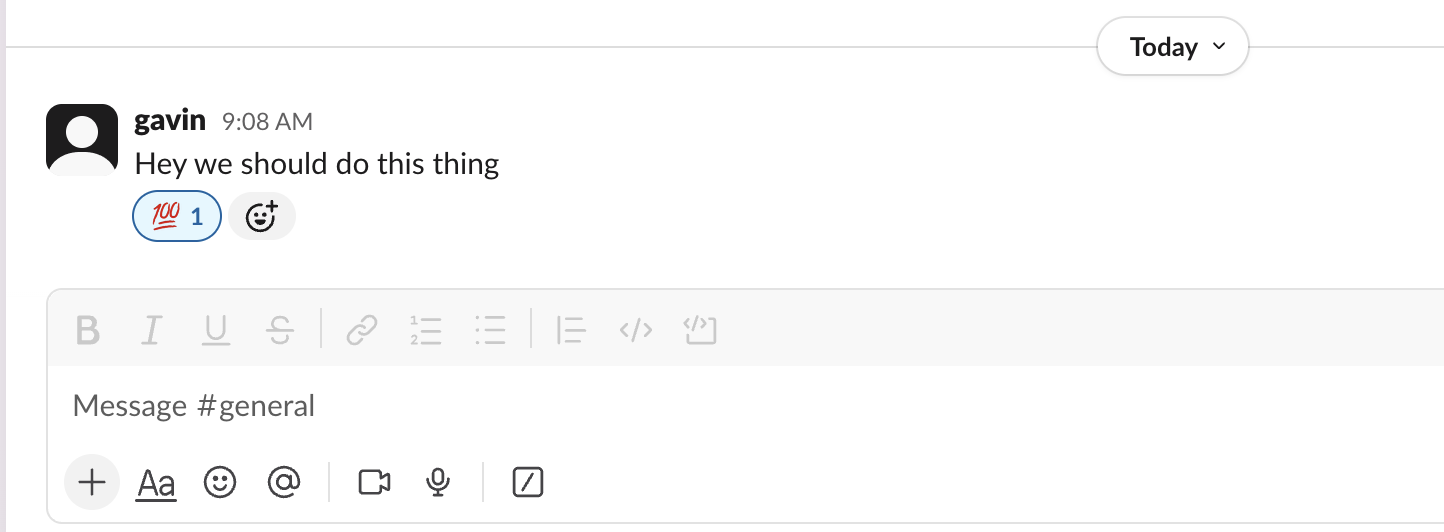
React to any Slack message with your agency's emoji and Lifted Work creates the task, with the original message and a link attached.
 03
03
Connect Claude or ChatGPT to Lifted Work through MCP and manage tasks, clients, emails, reports, and analytics from any AI tool.
 04
04
Your daily starting point. Requests, milestones, correspondence, monthly stats, team analytics, client analytics, and @mentions in one view.