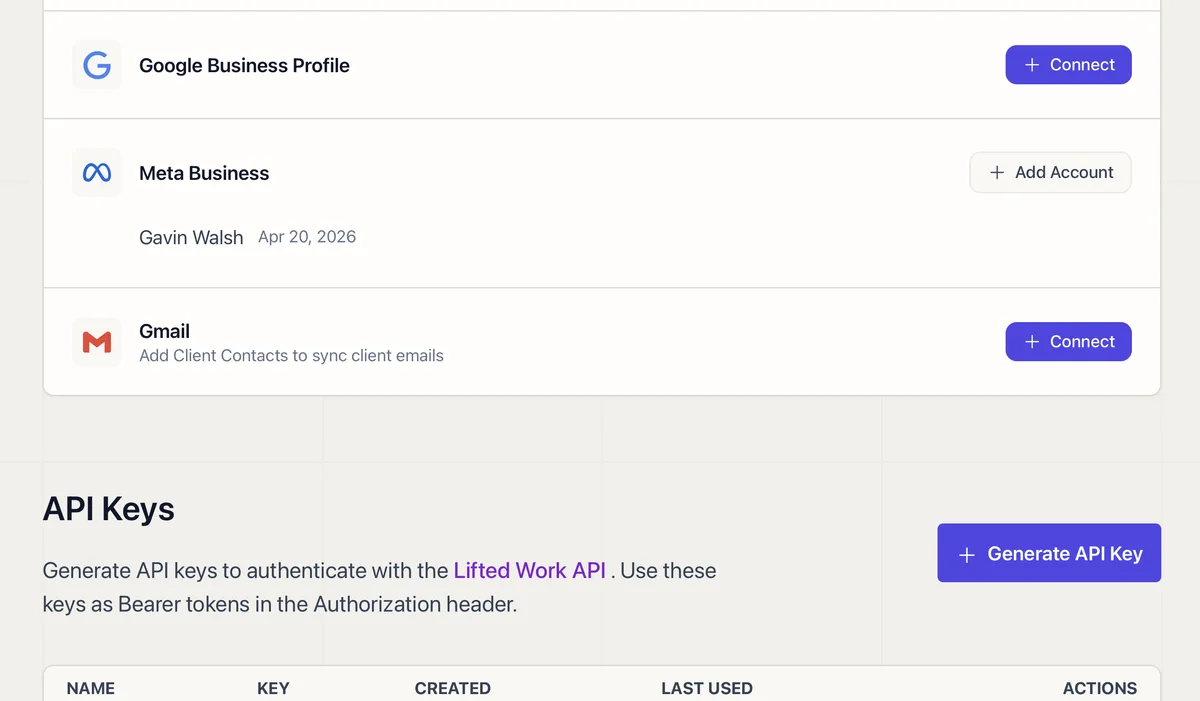

Slack Message to Emoji Reaction to Lifted Work Task
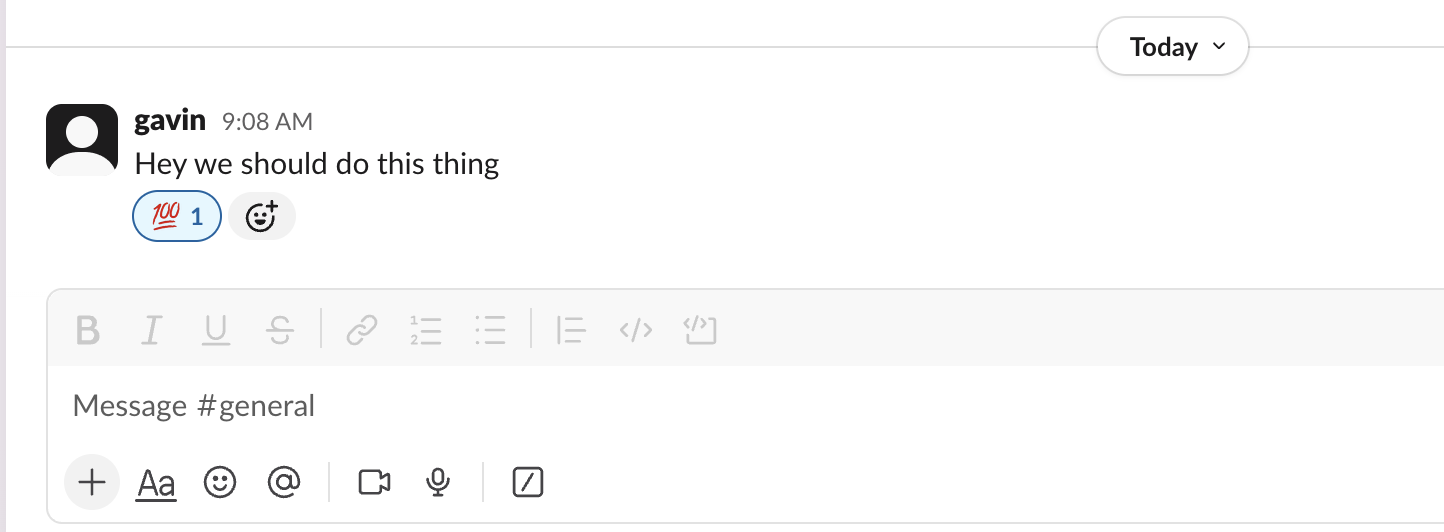
Learn how to integrate Slack emoji reactions with automatic task creation in Lifted Work.
1 Overview
React to any Slack message with a specific emoji and a task gets created in Lifted Work automatically. This integration runs through Zapier, which connects your Slack workspace to Lifted Work’s API.
2 What You Need
- A Zapier account (free or paid)
- A Lifted Work account on the Pro plan or higher
- Admin access to your Slack workspace
3 Setting Up the Zap
- In Zapier, create a new Zap with the trigger Slack > New Reaction Added
-
Choose which emoji reaction triggers the Zap (e.g.,
:white_check_mark:) - Add a Lifted Work action to create a task via the API
- Map the Slack message content to the task title or description
- Configure which client and tags the task should be created under
4 What the Zap Does
When someone adds the designated emoji to a Slack message, Zapier:
- Sends the message content to Lifted Work
- Creates a task under the client you configured
- Applies any default tags you set up
- Optionally triggers AI processing on the new task (via the Autocomplete setting)
5 Tips
- Use a distinctive emoji that your team won’t accidentally trigger
- Set up a Zapier filter to limit which Slack channels are monitored
- Add the original Slack message link to the task description for context
Related how-tos
-
01
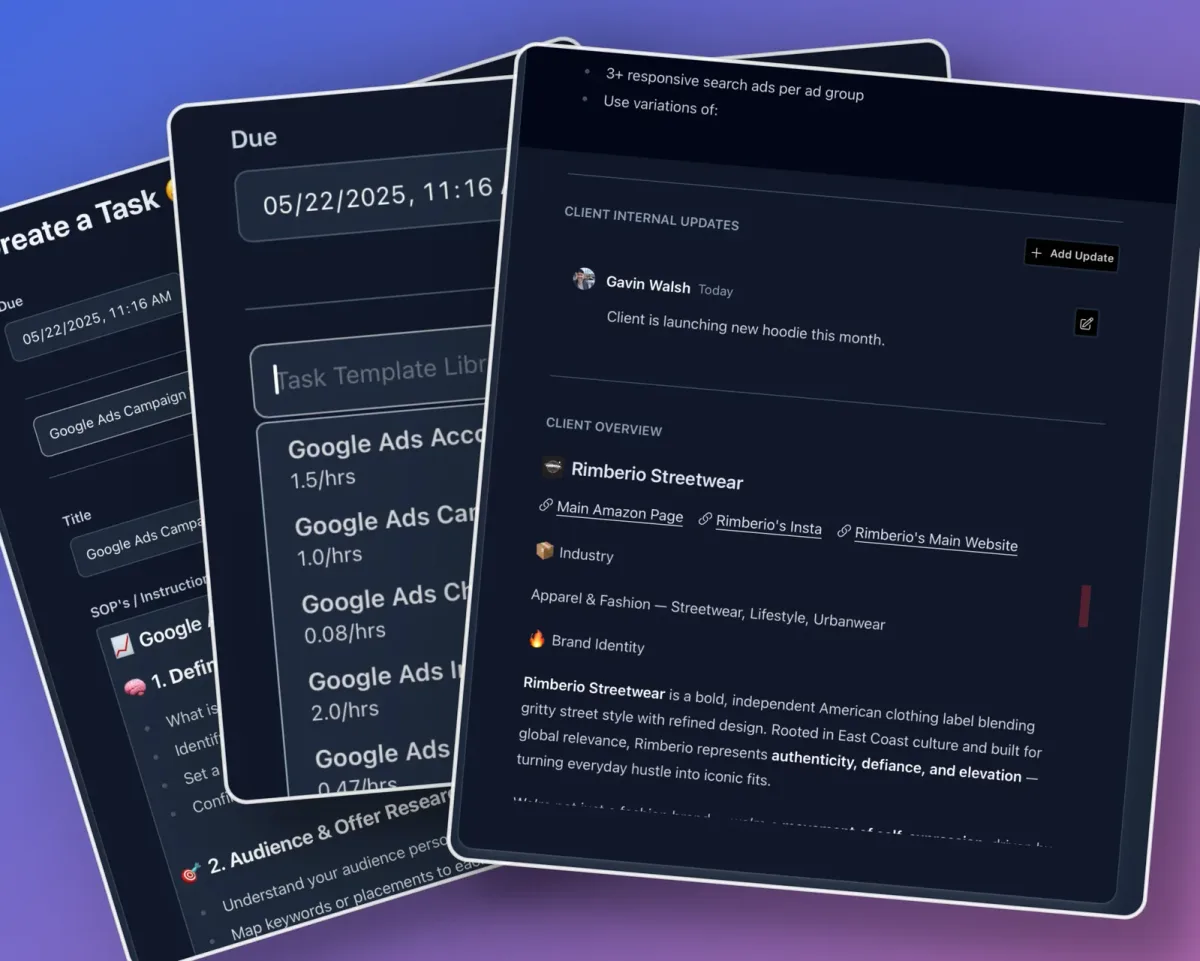
How to Use Task Templates in Lifted Work
Create reusable task blueprints with instructions, time estimates, Tools for AI settings, and Run on complete prompts. Organize them into groups for your agency.
 02
02
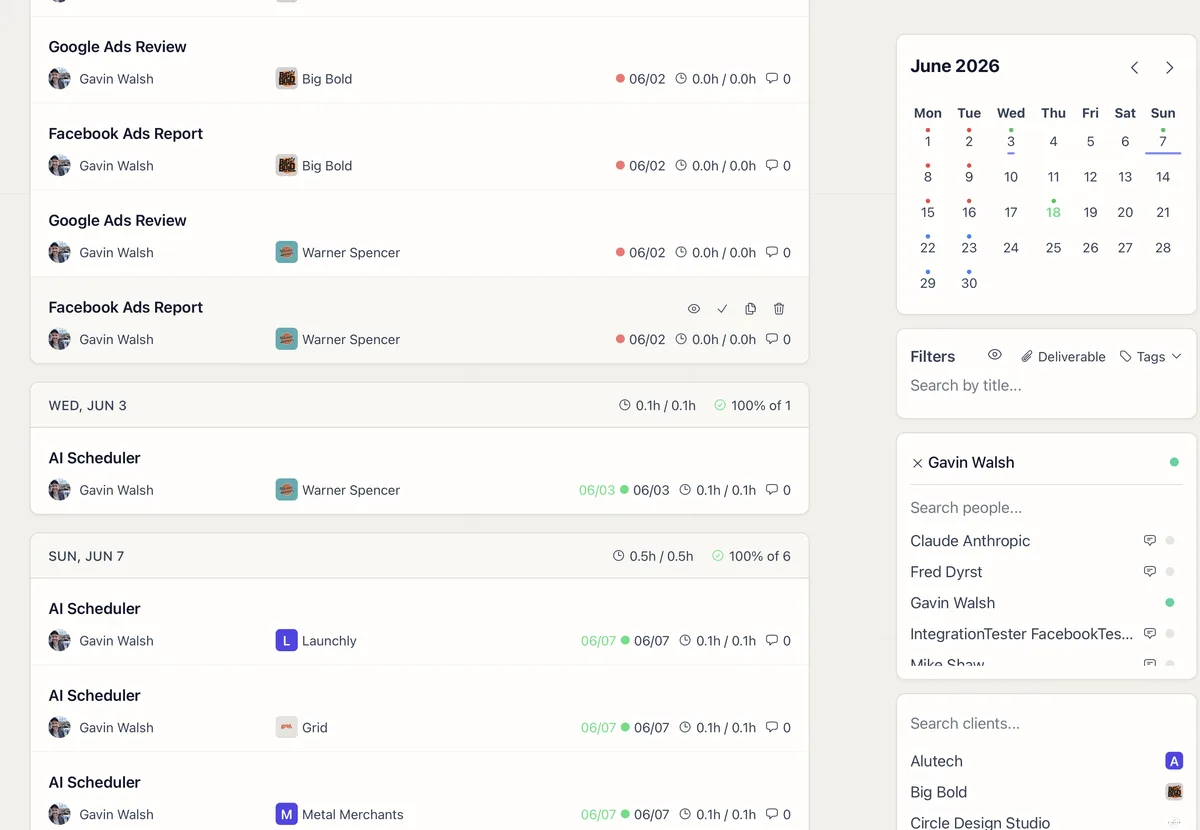
How to Use Filters to Find Any Task
How filters, date ranges, and views control which tasks you see, and how to reset them to find what you're looking for.
 03
03
How to Create a Report Template
Three ways to create report templates: ask Lifty AI, paste HTML from a guide, or generate one with Claude or ChatGPT. Plus how to copy templates between clients.
 04
04
How to Connect Claude or ChatGPT to Lifted Work
Step-by-step setup for connecting Claude, ChatGPT, or any MCP client to Lifted Work so your AI can manage tasks, emails, and clients.