AI Playbooks Features Pricing Integrations Guides How-Tos

Team Roles and Permissions with Lifted Work's Team Management System

Team Roles and Permissions with Lifted Work's Team Management System

Understand how access control and team structure configuration works in Lifted Work.

1 Roles Overview

Lifted Work has four built-in roles, each with different access levels:

  • Admin – Full access to everything: all clients, tasks, billing, settings, team management, and the AI sidebar. Can invite and remove team members and manage the agency.
  • Manager – Can view and manage tasks, clients, and team members within their scope. Has access to the AI sidebar, reporting, and can invite new team members. Cannot manage billing.
  • Employee – Focuses on task execution. Sees assigned tasks and client work. No access to the AI sidebar, billing, or team management.
  • Worker – External contractor or fulfillment role. Sees only assigned tasks. No access to client details, billing, or agency settings.

2 Key Permission Differences

Feature Admin Manager Employee Worker
AI Sidebar (Lifty) Yes Yes No No
Billing & Invoices Yes No No No
Invite Team Members Yes Yes No No
Agency Settings Yes Yes No No
Client Portal Preview Yes Yes Yes No
Task Creation Yes Yes Yes No
Task Assignment Yes Yes Yes No

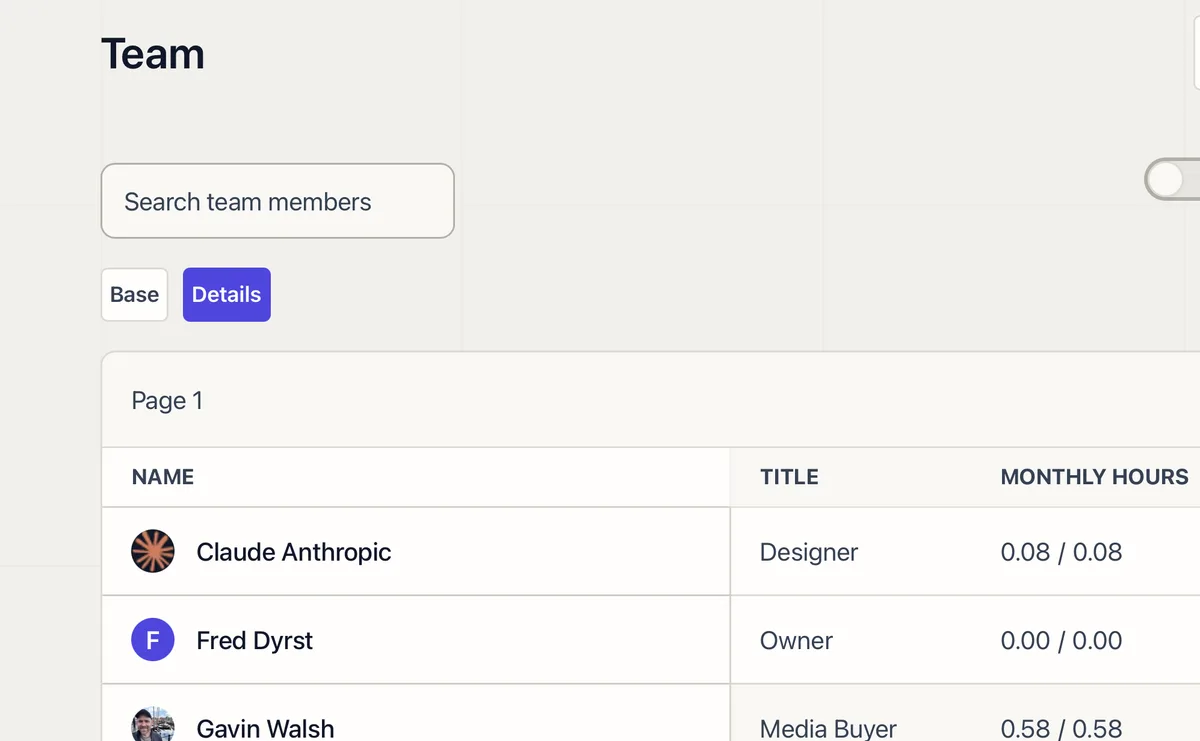
3 Inviting Team Members

  • Go to Team from the main navigation
  • Click Invite
  • Enter their email and select a role
  • They’ll receive an onboarding email with login instructions

4 Choosing the Right Role

Use Admin sparingly – typically agency owners and operations leads. Manager works well for account managers and project leads who need AI sidebar access and client oversight. Employee fits in-house team members doing hands-on work. Worker is built for external contractors who only need to see and complete their assigned tasks.