
What URL do I use to connect an MCP client to Lifted Work?
Use https://www.liftedwork.com/mcp as the remote MCP server URL. Your client should open an OAuth authorization flow so you can sign in and approve the requested access.
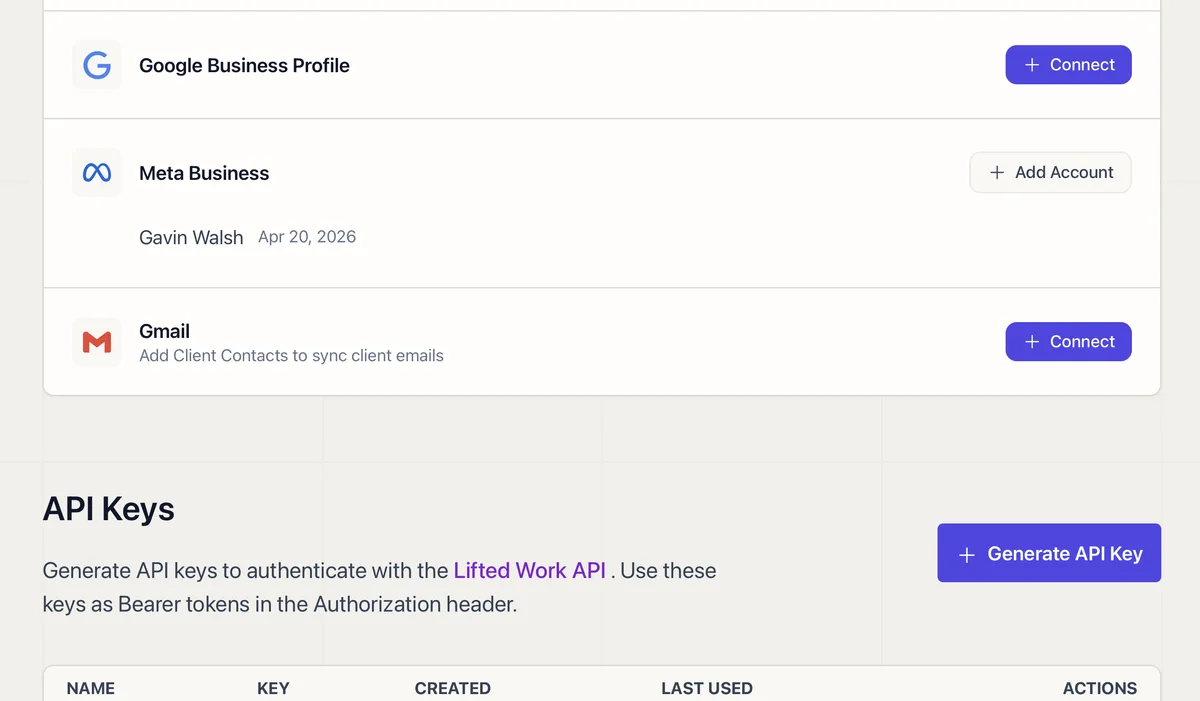
Step-by-step setup for connecting Claude, ChatGPT, or any MCP client to Lifted Work so your AI can manage tasks, emails, and clients.
https://www.liftedwork.com/mcpAdd the server to your Claude Code configuration:
{
  "mcpServers": {
    "lifted-work": {
      "url": "https://www.liftedwork.com/mcp"
    }
  }
}
Claude Code will handle the OAuth flow the first time you use a Lifted Work tool.
https://www.liftedwork.com/mcpOnce connected, your AI has access to your Lifted Work data:
During authorization, you choose the access level:
resource:read): List and search tasks, clients, emails, analytics. Nothing is created or modified. resource:write): Everything above plus creating tasks, drafting emails, posting to feeds, and managing milestones. FAQ
Use https://www.liftedwork.com/mcp as the remote MCP server URL. Your client should open an OAuth authorization flow so you can sign in and approve the requested access.
Yes. Choose the read-only resource scope when the AI only needs to list, search, or summarize records. Full access is required for actions such as creating tasks, drafting emails, or posting to a client feed.
Tools for GA4, Search Console, Google Ads, Meta, and other platforms appear only when the matching integration is connected for the agency. Confirm the integration in Lifted Work, then reconnect or refresh the MCP client if its tool list is stale.
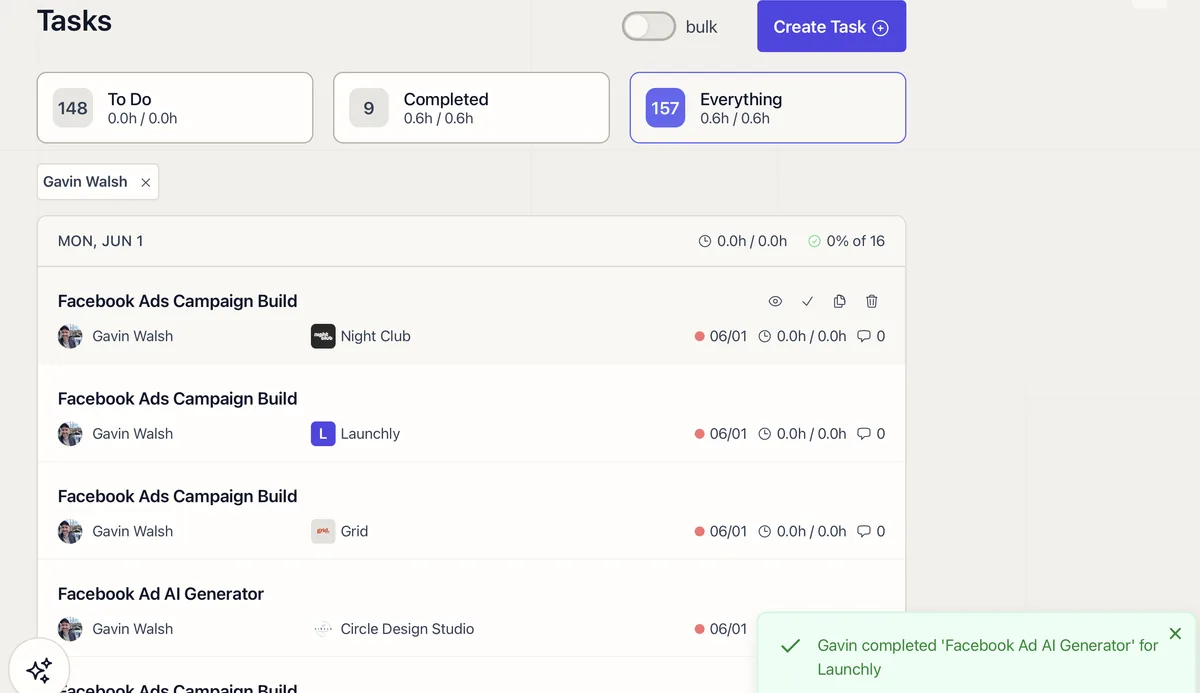
A complete walkthrough of every task option: title, assignment, due date, time estimate, Lifty Prompt, Autocomplete, Run on complete, tags, and visibility.
 02
02
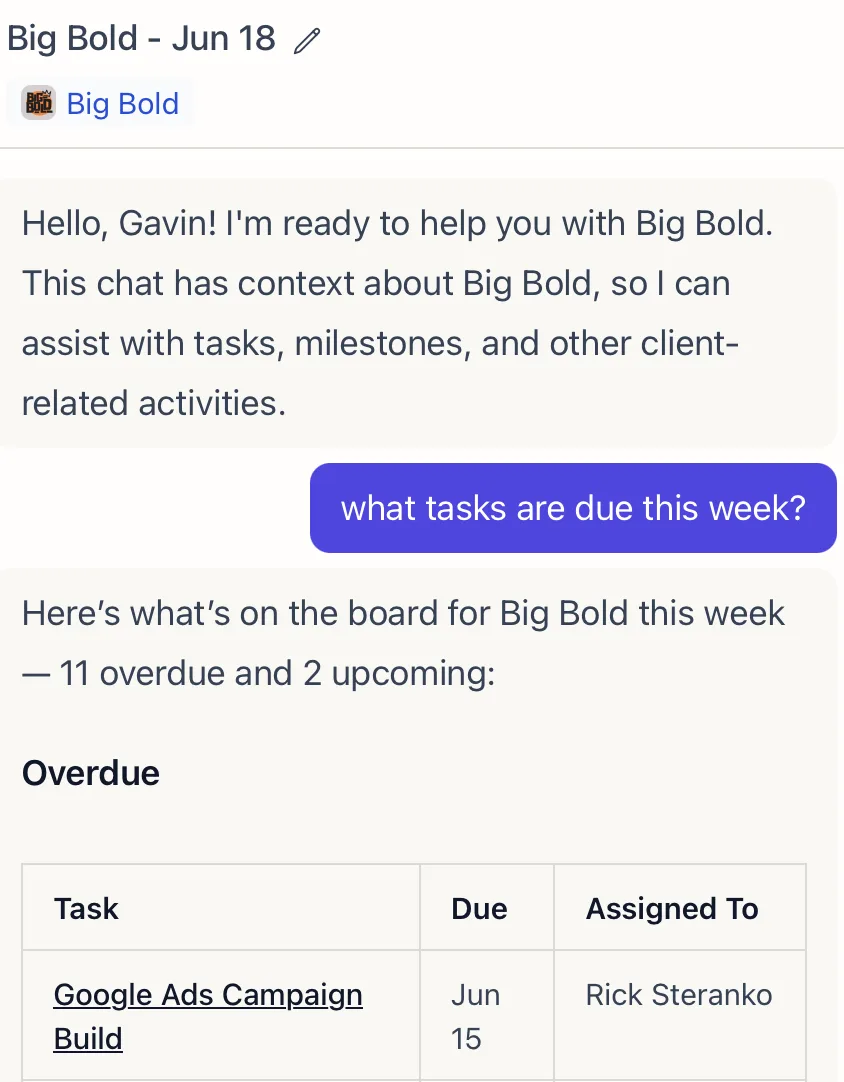
Lifty is a built-in chat assistant for agency admins and managers. Create tasks, generate milestones, draft emails, and pull analytics from a single sidebar.
 03
03
Connect Claude or ChatGPT to Lifted Work through MCP and manage tasks, clients, emails, reports, and analytics from any AI tool.
04
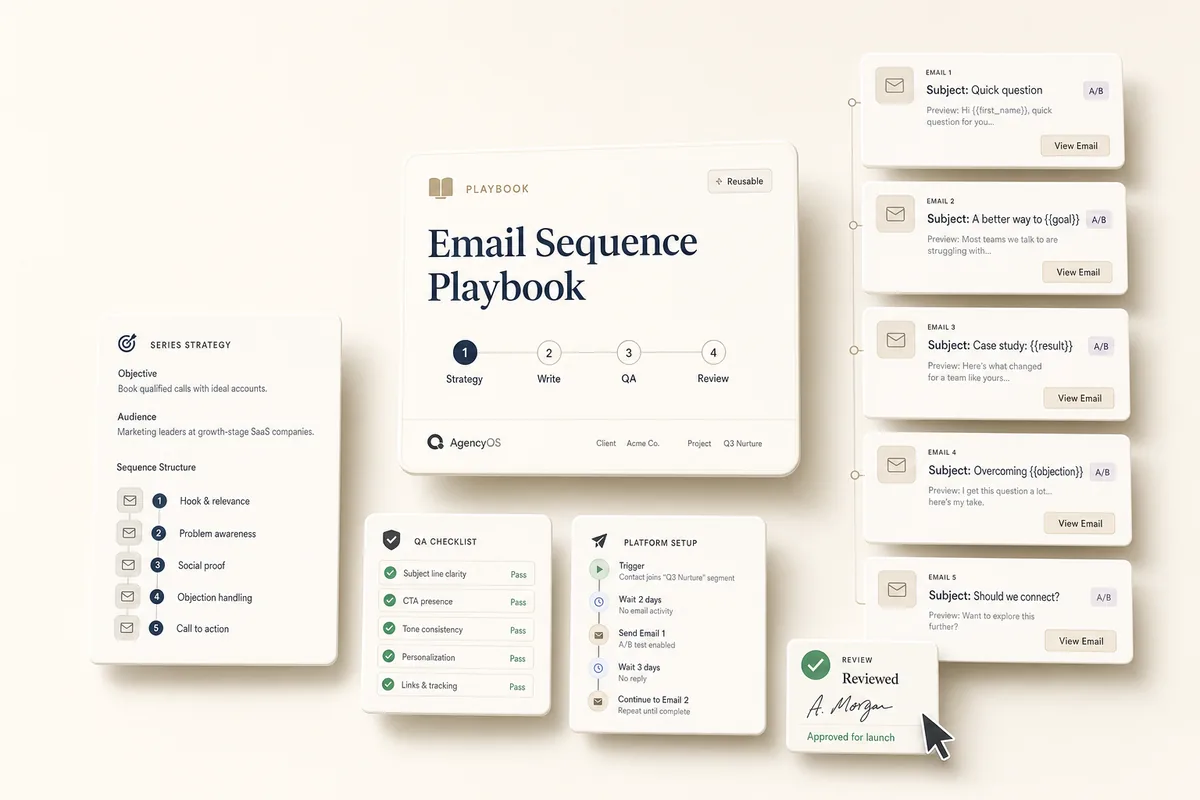
A full sequence arrives planned, written with A/B subject lines, and checked for CTAs and tone across every message, with setup instructions for whatever platform you send from. The default is a welcome series, and it works the same for re-engagement, launch, or nurture.