AI Playbooks Features Pricing Integrations Guides How-Tos

Automate Monthly Account Reviews

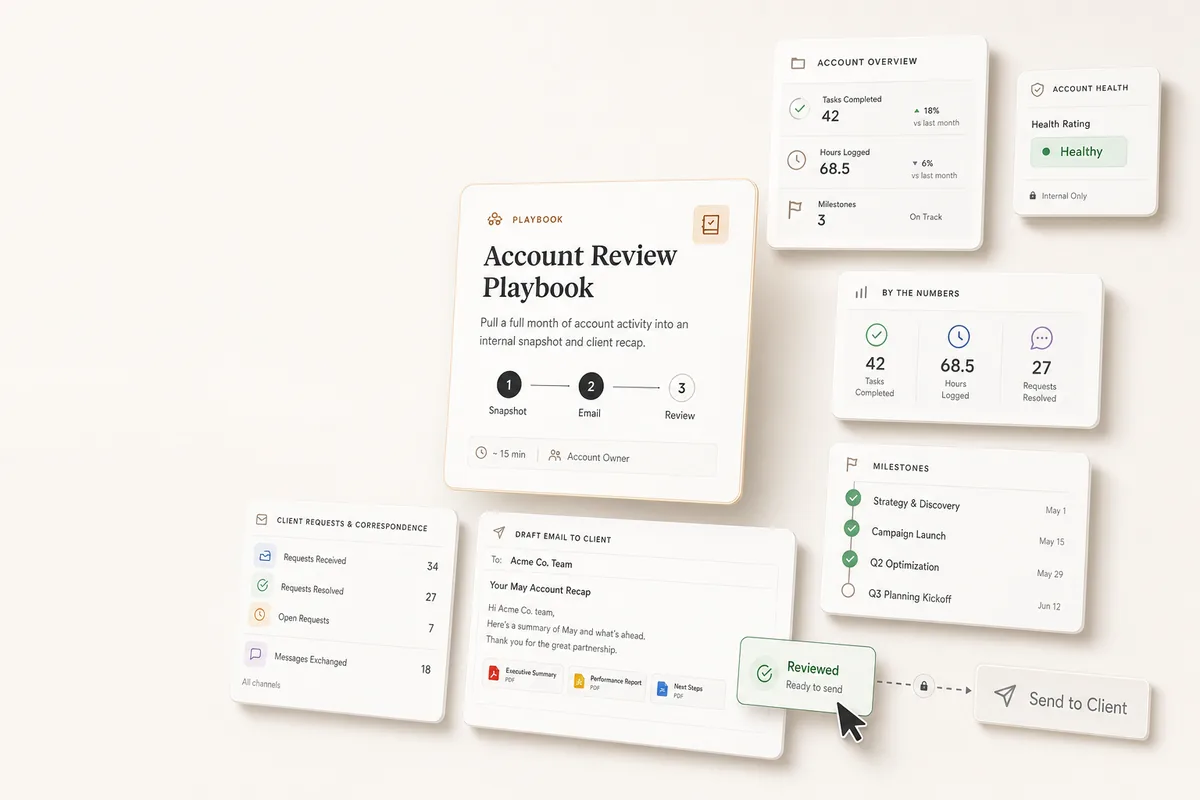
Three chained tasks pull account activity for the month, create an internal health snapshot, and draft a recap email to the client with report links.

What this does

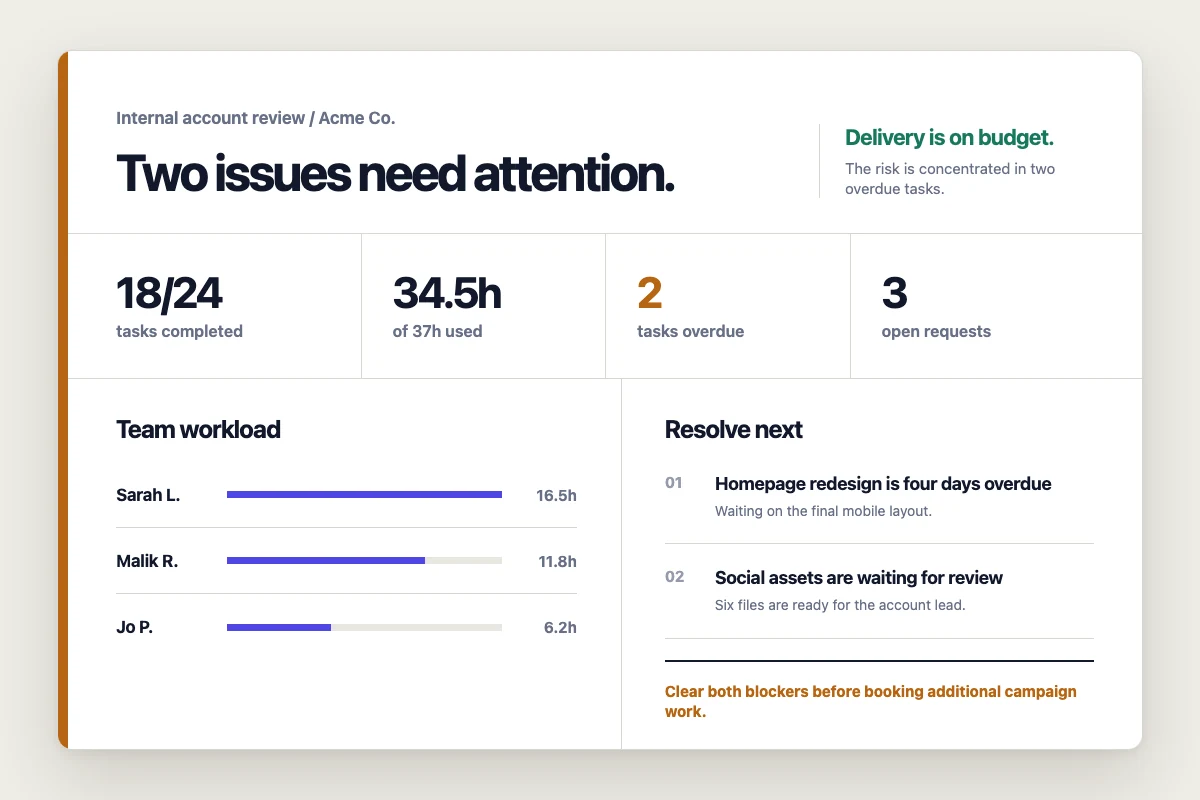
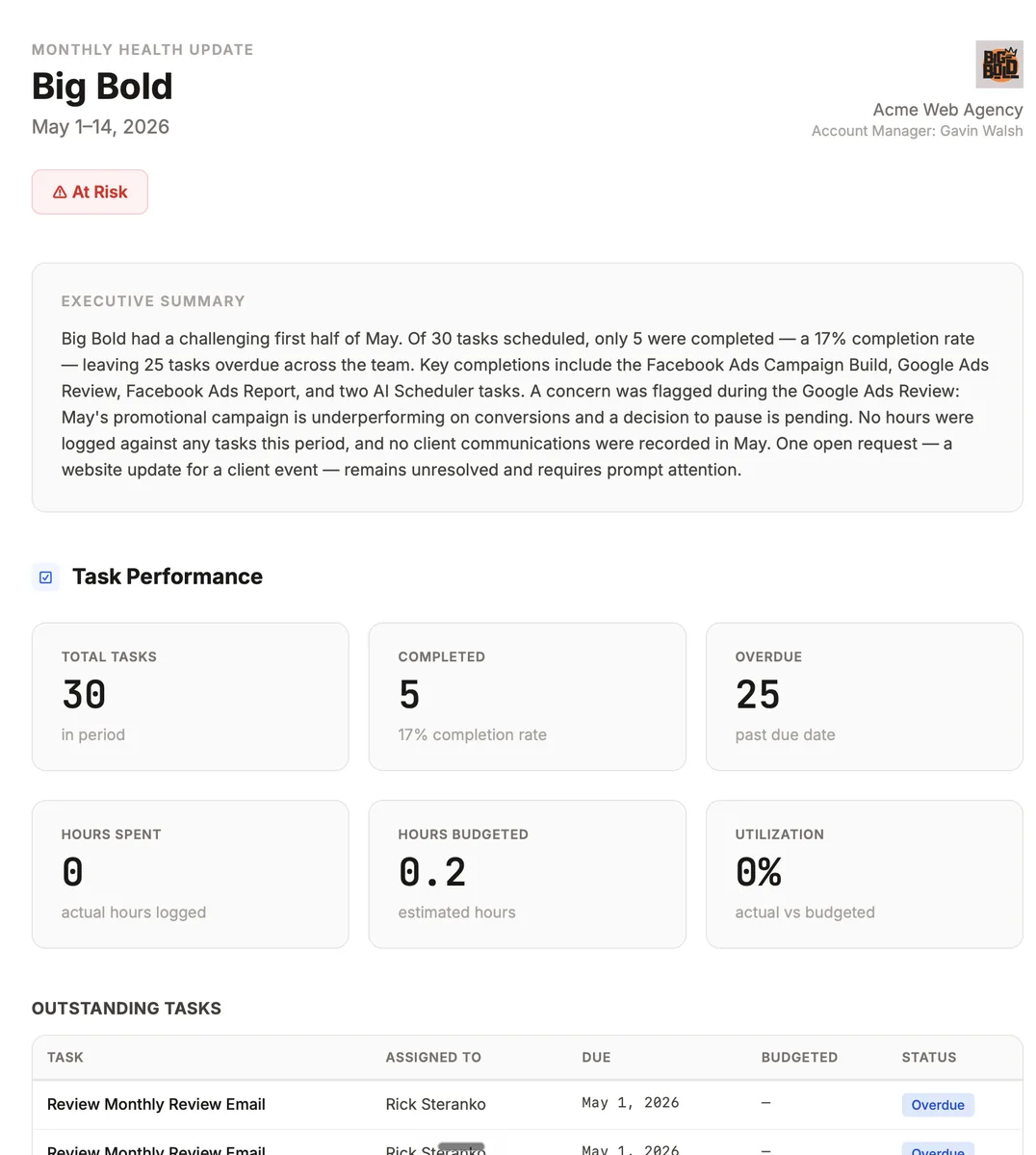
This playbook pulls everything that happened on an account this month: tasks completed, hours spent, client requests, correspondence, milestones, and any reports that were generated (with the metrics from those reports). It creates an Account Overview deliverable with an internal health rating, drafts a recap email to the client, and lands a review task on your desk.

If you run the monthly reporting playbook earlier in the month, this chain finds those rendered reports and pulls the metrics and links directly into the email.

Best for

Account managers running retainer clients who want a consistent monthly check-in without pulling data manually for each client.

How the chain works

Template 1: Account Health Snapshot. Pulls tasks, analytics, requests, correspondence, milestones, and any reports rendered in the last 30 days (with their metric data). Creates an “Account Overview” deliverable with an Account Health Rating (Healthy, Needs Attention, or At Risk). Only includes sections that have data. When done, books Template 2.

Template 2: Draft Client Email. Reads the Account Overview, finds the client contact, and drafts a recap email covering what was delivered, report metrics and links, follow-ups, and what’s next. The health rating is internal only and stays out of the email. When done, books Template 3.

Template 3: Review & Send. The task opens with the health rating so you know where to focus. Review the email for accuracy, add personal context, and send.

Requirements

  • Templates 1-2 need Autocomplete enabled.
  • The client should have at least one contact set up (the AI picks the first contact as the email recipient).
  • Fill in the client description so the AI knows what to emphasize.

How to use it

  1. Create a task from “Account Health Snapshot (1/3)” for your client, due on the last business day of the month.
  2. On its due date, it autocompletes and the chain runs through both AI steps. To run it earlier, mark it complete yourself or click Run Prompt.
  3. The review task lands in your queue. Check the Account Overview, review the email draft, add personal touches, and send.

Tips

  • The email is never sent automatically. You always review and approve before it goes out.
  • The health rating is internal only. The email never includes “Healthy” or “At Risk.” That assessment is for you to act on, not for the client to see.
  • Multiple contacts? The prompt picks the first contact. If you want a specific person, add “Send to [Name]” to the prompt.
  • It handles missing data. If you don’t use requests, correspondence, or reports, the overview focuses on tasks and milestones. No empty sections.
  • Customize the email structure. Adjust the sections in the prompt to match your agency’s style. Some agencies skip “by the numbers” and lead with deliverables. Others add a “wins” section.

The templates

Paste these into Settings → Task Templates in your Lifted Work account. Create a template group, add each template in order. When you create tasks from these templates, the AI picks up client context automatically.

Sign in to add
1.

Account Health Snapshot (1/3)

15 min budgeted Auto-complete: on Run AI on complete: on Tags: account, review, monthly
Lifty Prompt

Read the client profile for context on their business, goals, and services.

Gather data for the current calendar month. Use the first day of this month as the start date and today as the end date for all lookups.

Gather the data

  • List completed tasks with status “Completed”, limit 50, include fields: completed_at, budgeted_minutes, actual_minutes
  • Get task analytics for this client (entity_type: “client”) for the same date range
  • List requests for this client with status “all”
  • List correspondences for this client
  • List milestones for this client
  • List reports for this client for the past 30 days with fields: [“include_variables”]

Some of these may return empty results. That’s normal. Not every agency uses requests, correspondence, or reports. Only include sections in the overview that have data worth mentioning.

Write the overview

Create one deliverable titled “Account Overview”.

Start with an Account Health Rating: Healthy, Needs Attention, or At Risk. One sentence explaining why. Base this on what you found: delivery pace, hours vs. budget, anything unresolved, report metrics if available. This is the first thing the account manager reads.

Then summarize what happened this month. Adapt depth to volume: busy months should be scannable with work grouped by theme; quiet months can go deeper on each item.

Include:

  • What was completed and when
  • Hours spent vs. budgeted
  • Any open or unresolved items (open requests, unanswered correspondence, missed milestones)
  • For each report found: the template name, key metrics from variables_used, and the HTML link
  • Upcoming milestones

Flag anything that looks like it needs attention: tasks running significantly over budget, items that have been open a long time, or report metrics that seem concerning based on what the client profile says they care about.

Do not draft any email. This deliverable is the data foundation for the next step.

When done, create a task from the “Draft Client Email (2/3)” template assigned to me, due in 5 minutes.

2.

Draft Client Email (2/3)

10 min budgeted Auto-complete: on Run AI on complete: on Tags: account, email, monthly
Lifty Prompt

Read the client profile for brand voice and the client’s name.

Look up deliverables for this client with title “Account Overview” and include the content. Use that overview to draft a client-facing recap email.

Find the client’s contacts using list_users with scope “client”. Pick the primary contact (first result) as the recipient.

Draft an email to that contact.

Subject: [Month] Update - [Client Name]

Open with a 1-2 sentence lead that captures the month. Something specific pulled from the overview, not a generic “here’s your update.”

Then cover what matters from the overview: what was delivered, any standout metrics from reports, report links if available, open follow-ups, and what’s coming next. Only include sections that have substance. Skip anything empty.

Do NOT include the Account Health Rating in the email. That’s internal only.

If reports were found in the overview, include a line per report with the name and a clickable HTML link.

Close with something inviting the client to adjust priorities.

Writing rules:

  • Use the contact’s actual first name
  • Reference actual task names and real numbers, not generic summaries
  • No em dashes
  • No “leverage,” “elevate,” “streamline,” or “in today’s digital landscape”
  • Write like a real person, not a recap template
  • Keep it under 400 words

When done, create a task from the “Review & Send (3/3)” template assigned to me, due tomorrow.

3.

Review & Send (3/3)

15 min budgeted Tags: account, review, email
SOP / Details

AI has built an account health snapshot and drafted a client recap email. Review both before sending:

  1. Open the “Account Overview” deliverable. Start with the Account Health Rating at the top. If it says “Needs Attention” or “At Risk,” read the Open Items section carefully before looking at the email.
  2. Check that task counts, hours, and metrics match reality. The AI pulls from system data, but budgeted hours and completion dates can be off if tasks were logged late.
  3. Open the email draft in your email panel. Check:
    • Does the opening line capture the right tone for the month?
    • Are task names and metrics accurate?
    • Do the report links work? Click each one.
    • If the overview flagged open items, does the email handle them well or does it need a more personal touch?
  4. Add any personal context the AI couldn’t know: a call you had, a decision made offline, a win worth celebrating, or a difficult conversation to set up.
  5. Skip or remove any sections that feel thin. A short, confident email beats a padded one.
  6. Send when ready.
  7. Mark this task complete.

Make your future better

Adopt at your own pace
Guided setup
Cancel anytime
Easy start