AI Playbooks Features Pricing Integrations Guides How-Tos

Turn Blog Posts Into Social Content and a Branded Image

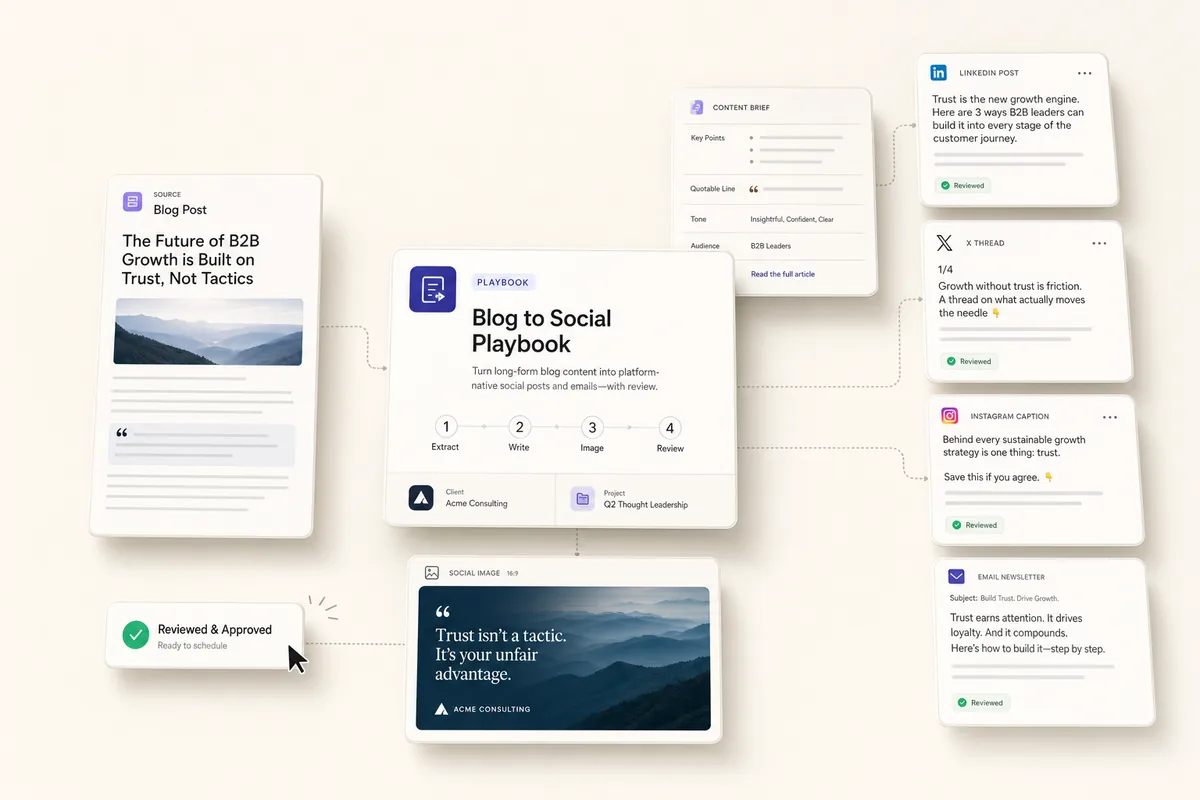
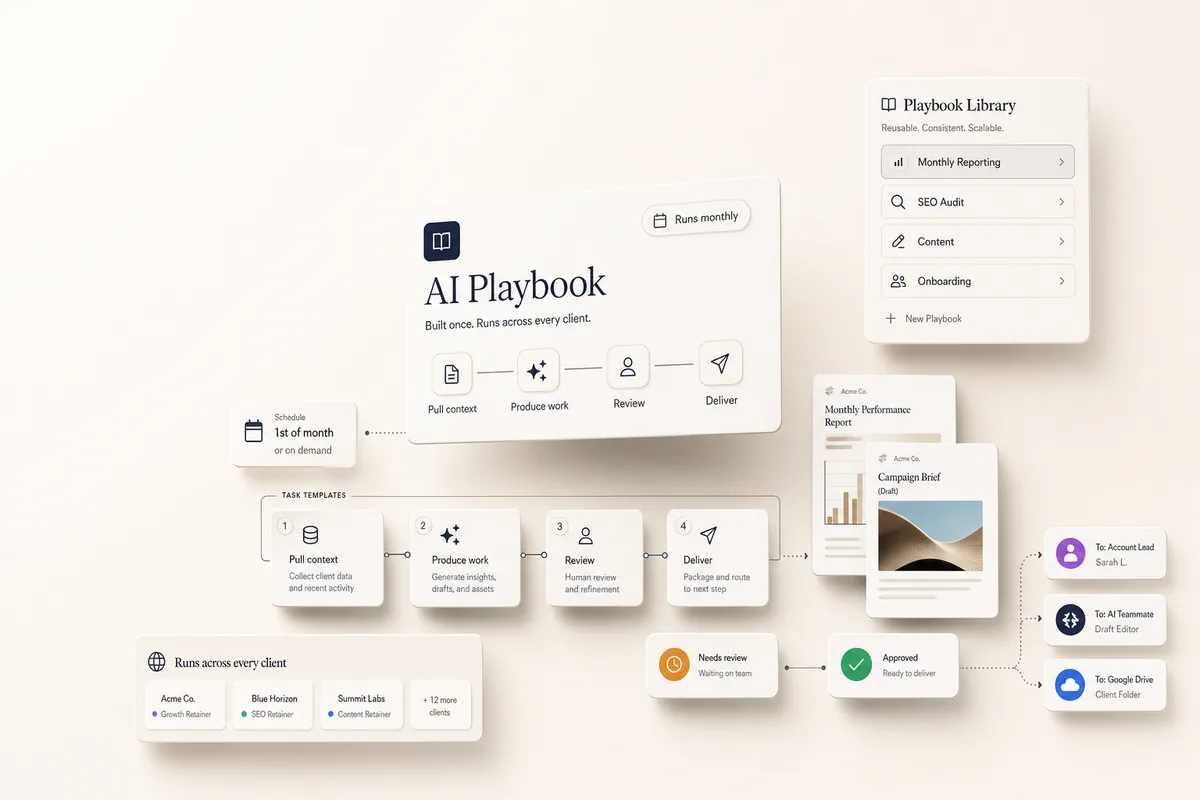
Four chained tasks: extract the key points, write copy for LinkedIn, Twitter/X, Instagram, and email, generate a branded social image, and land a review task on your desk.

What this does

You already wrote the blog post. This playbook reads the article and turns it into social posts for LinkedIn, Twitter/X, and Instagram, plus a branded image and an email newsletter snippet. Each one is a separate deliverable written for how people read on that platform. A review task lands in your queue when it’s done.

Prerequisite

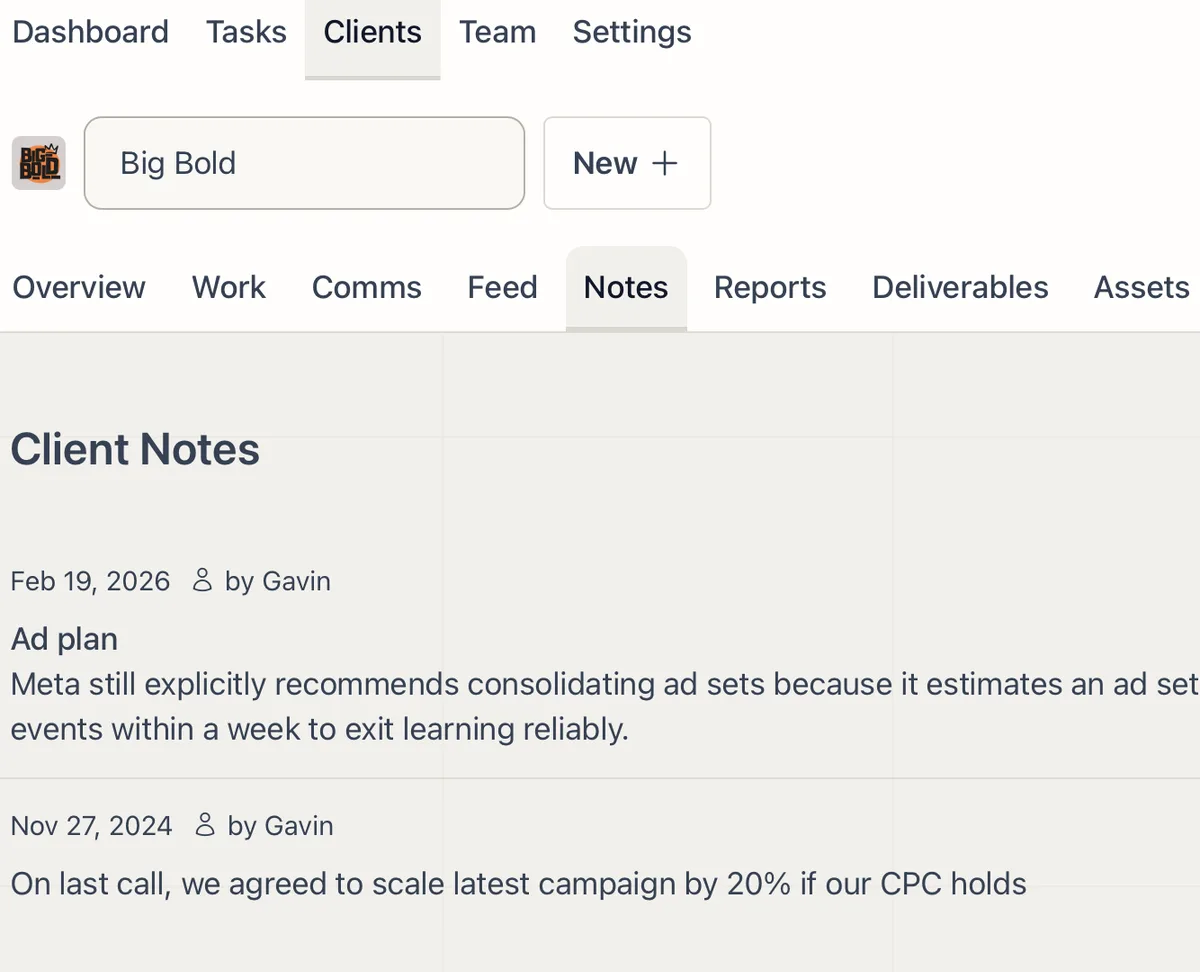
Run the Brand Guide playbook for this client first. The image step reads the “Brand Guide” client note to apply the client’s Image Generation Prompt Modifier and uses one of its reference images as a visual style anchor, so the generated image sits alongside the ad creatives as part of a consistent set.

Best for

Agencies doing content marketing where every blog post should feed the rest of the content calendar.

How the chain works

Template 1: Extract Blog Content. Reads the client profile and browses the blog post URL. Creates one deliverable called “Blog Content Brief” with the main insight, key points, a quotable line, audience angle, and tone notes. Does not write any social content yet. When done, books Template 2.

Template 2: Write Social Copy. Reads the content brief from the previous step. Writes one deliverable per platform: LinkedIn post, Twitter/X thread, Instagram caption, email newsletter snippet, and the quote graphic text. Each post is written for how people actually read on that app. When done, books Template 3.

Template 3: Generate Social Image. Reads the Brand Guide note for the Image Generation Prompt Modifier and reference image catalog, then reads the content brief and quote text. Generates one 16:9 landscape image designed to work across all platforms, with the Prompt Modifier prepended to the scene description and the best-matching reference image from the catalog passed to Gemini as a visual style anchor. If the quote is short enough, the AI includes it as text in the image. Longer quotes are left out so you can overlay them manually. If no Brand Guide note exists, the step creates a “Blocked: Brand Guide missing” deliverable and does not generate. When done, books Template 4.

Template 4: Review & Post. You review each deliverable for accuracy and tone, verify the image text reads correctly, schedule the posts, and drop the email snippet into your newsletter.

Requirements

  • Templates 1-3 need Autocomplete enabled.
  • Paste the blog URL into the first template’s Lifty Prompt (replace the placeholder) each time you create a task.
  • The client profile should have brand colors filled in (happens automatically if you entered their website URL during setup).

How to use it

  1. Create a task from “Extract Blog Content (1/4)” for your client, pasting the blog post URL into the prompt
  2. On its due date, it autocompletes and the chain runs through all three AI steps. To run it earlier, mark it complete yourself, set the due date sooner, or open the task and click Run Prompt.
  3. The review task lands in your queue the next day with SOPs. Check the deliverables, schedule the posts, and mark complete when everything is live.

Tips

  • One article, one task. Create a separate task for each blog post so deliverables stay organized per article.
  • Drop or add platforms. Remove Twitter if the client isn’t on it, or add a Facebook post, Pinterest pin, or YouTube Shorts script to the writing template’s prompt.
  • Adjust tone per client. Add a line like “This client’s tone is casual and irreverent” to the extraction template’s prompt. The brief carries that forward to all steps.
  • One image, every platform. The chain generates a single landscape image. If you need a square for Instagram, duplicate the image generation template and change the size to 1024x1024.
  • Pairs with the blog post playbook. That one writes the article from your keyword strategy, then this one turns it into social content.
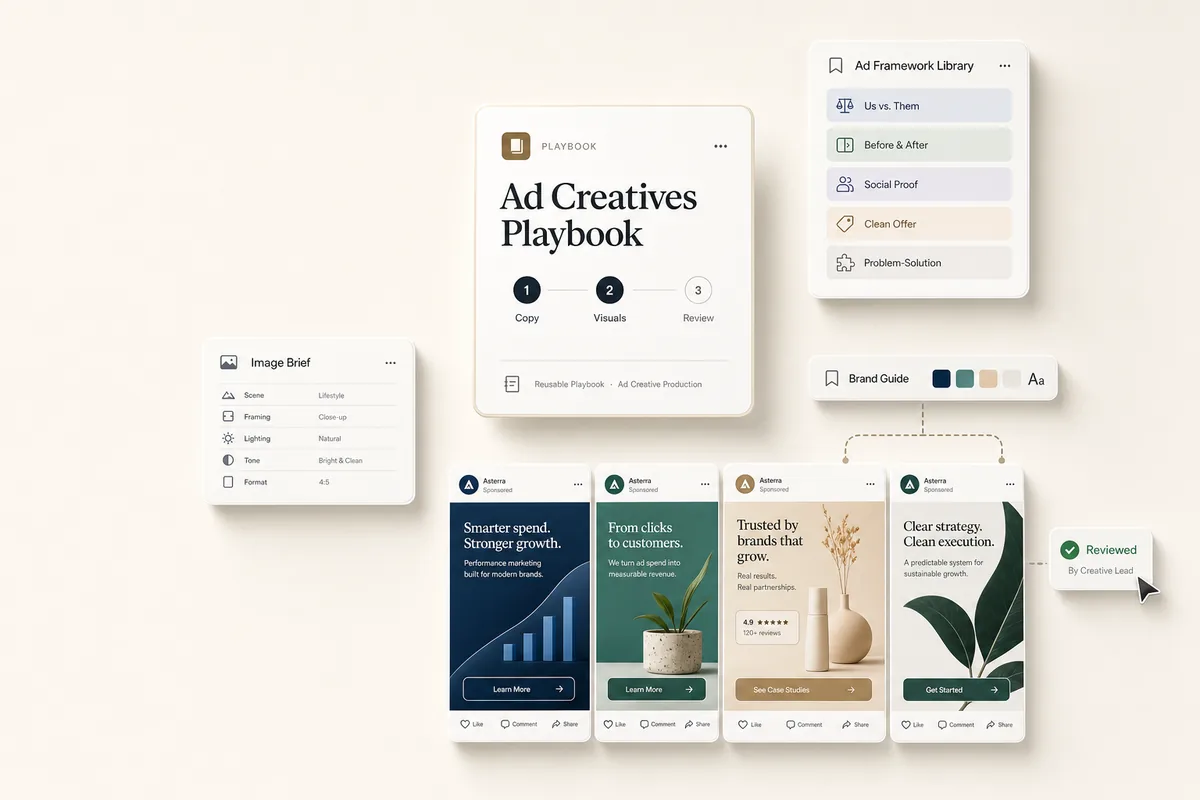
  • Pairs with the Brand Guide playbook (builds the note this playbook reads from) and the Ad Creatives playbook (uses the same Brand Guide note to generate paid social creatives).

The templates

Paste these into Settings → Task Templates in your Lifted Work account. Create a template group, add each template in order. When you create tasks from these templates, the AI picks up client context automatically.

Sign in to add
1.

Extract Blog Content (1/4)

10 min budgeted Auto-complete: on Run AI on complete: on Tags: content, social, repurposing
Lifty Prompt

Read the client profile for context on their business, audience, and brand voice.

Browse this URL with type page_seo_audit to capture the full article (the default type truncates at 8,000 characters): [PASTE BLOG URL HERE]

Create one deliverable titled “Blog Content Brief” containing:

  1. Article title and URL
  2. Main insight: the single most important takeaway in one sentence
  3. Key points: 3-5 supporting points from the article, each in one sentence
  4. Quotable line: the single most shareable sentence from the article (under 15 words, exact wording from the original)
  5. Audience angle: who cares about this topic and why it matters to them right now
  6. Tone notes: how the article reads (technical, conversational, authoritative, etc.) so the social copy can match

Do not write any social content yet. This brief is the foundation for the next step.

When done, create a task from the “Write Social Copy (2/4)” template assigned to me, due in 5 minutes.

2.

Write Social Copy (2/4)

15 min budgeted Auto-complete: on Run AI on complete: on Tags: content, social, writing
Lifty Prompt

Read the client profile for brand voice and audience context.

Look up deliverables for this client with title “Blog Content Brief” and include the content. Use that brief to write platform-native social content.

Create one deliverable per platform:

Deliverable: “LinkedIn Post” 100-200 words. Lead with the article’s main insight, not a generic opener. Short paragraphs (1-2 sentences each). End with a question or clear call to action. Include the article link at the end.

Deliverable: “Twitter/X Thread” 4 tweets. First tweet is the hook that stops the scroll. Tweets 2-3 walk through key points. Last tweet links back to the full article. Each tweet should stand alone if someone only reads one.

Deliverable: “Instagram Caption” 150-250 words. Open with a hook line that works without seeing an image. Storytelling tone. Break into short paragraphs. Include 5-8 relevant hashtags at the end, separated from the body by a line break.

Deliverable: “Email Newsletter Snippet” 2-3 sentences summarizing the article for someone skimming a newsletter. End with a “Read more” link. Written to drop into an existing newsletter template without editing.

Deliverable: “Quote Text” The quotable line from the brief (under 15 words, exact wording). Include the attribution (author or brand name) on a separate line. This is for the reviewer to overlay on the image from the next step if they want a true quote graphic.

Writing rules for all platforms:

  • Each platform should feel native, not a shortened version of the same text
  • No em dashes
  • No “game-changer,” “leverage,” “elevate,” “unlock,” “seamlessly,” or “in today’s digital landscape”
  • Write like a person talking to another person, not a content mill
  • Match the tone from the brief

When done, create a task from the “Generate Social Image (3/4)” template assigned to me, due in 5 minutes.

3.

Generate Social Image (3/4)

10 min budgeted Auto-complete: on Run AI on complete: on Tags: content, social, design
Lifty Prompt

Generate one branded social image for the blog post, using the client’s Brand Guide as the style anchor.

Step A — Load the Brand Guide. Call list_client_notes filtered by title “Brand Guide” for this client.

If no Brand Guide note is found, STOP. Create one deliverable titled “Blocked: Brand Guide missing” explaining that the Brand Guide playbook (/automations/automate-brand-guide) must be run for this client before the social image can be generated. Do not call generate_image. Still book Template 4 so the human sees the block.

If the Brand Guide note exists, extract:

  • The Image Generation Prompt Modifier paragraph (prepended to the prompt below)
  • The Visual System hex colors
  • The Image Dos and Don’ts section if present — append its rules to the prompt
  • The Reference Images catalog. Scan the entries and pick one URL for style anchoring. Evaluate descriptions first (“shows: …”); when a description reads “subject unclear”, fall back to the alt text, URL path, or source sub-heading. For a blog-post social graphic, prefer an image with strong brand mood (a hero composition, color application in context) over a tight product shot. If nothing obviously fits, pick any homepage entry.

Step B — Read the brief and quote. Read the client profile. Look up deliverables for this client with title “Blog Content Brief” and “Quote Text” and include the content. Use the main insight and audience angle to understand the article’s theme.

Step C — Build the image prompt.

Decide whether to include the quote text in the image:

  • If the quote is short (under 10 words) and has no tricky punctuation, include it as text in the image.
  • If the quote is longer or complex, skip it and create a visual-only image. The reviewer can overlay text manually.

Write a scene description following this order: background/scene → subject/focal point → typography (if applicable) → constraints.

Background and scene:

  • Describe the setting, mood, and color palette. Use the client’s brand primary color as the dominant accent with the exact hex value (e.g., “background of deep #2563EB blue with soft gradient to white”).
  • Specify lighting from the Brand Guide Photography Direction.
  • Keep it minimal. One or two visual elements maximum.

Subject and focal point:

  • If including text: the text IS the subject. Describe a clean background that supports readability.
  • If no text: describe one concrete visual concept tied to the article’s theme, not a generic business image.
  • Specify framing: “centered with generous negative space on all sides” or “subject positioned left with open space right.”

Typography (when including quote text):

  • Put the exact quote in quotes: Bold text reading 'Your exact quote here'
  • Specify: bold sans-serif font (or the Brand Guide heading font if the Brand Guide mentions a distinctive one), high contrast against background, centered, clean kerning
  • Add attribution in smaller text below the quote
  • Demand: “text appears once, perfectly legible, no extra characters”

Constraints (always include):

  • “No watermarks, no logos beyond what is specified, no stock photo elements, no clip art”
  • “No extra text beyond the quote” (if including text)
  • “Single focal point, minimal composition”

Assemble the final prompt as: {Image Generation Prompt Modifier}\n\n{scene description}.

Step D — Generate and attach. Call generate_image with:

  • prompt: the assembled prompt
  • image_url: the reference image URL you picked in Step A
  • aspect_ratio: “16:9” (landscape, universal: LinkedIn and Twitter display landscape natively, email newsletters scale it down, Instagram accepts landscape posts)
  • client_id: this client
  • title: “Social Image - [short theme description]”

Create one deliverable titled “Social Image” and include the generated image URL in the content so it displays inline. Note whether the quote text was included in the image or left out for manual overlay.

When done, create a task from the “Review & Post Social Content (4/4)” template assigned to me, due tomorrow.

4.

Review & Post Social Content (4/4)

20 min budgeted Tags: content, social, review
SOP / Details

AI has repurposed a blog post into social content for this client. Review the deliverables before scheduling:

  1. Check for a block. If there is a deliverable titled “Blocked: Brand Guide missing”, run the Brand Guide playbook for this client first, then rerun Template 3 of this playbook.
  2. Open the deliverables on this task. Look for “Blog Content Brief”, “LinkedIn Post”, “Twitter/X Thread”, “Instagram Caption”, “Email Newsletter Snippet”, “Quote Text”, and “Social Image”.
  3. Start with the Blog Content Brief to understand the source material and angles.
  4. Review each social post for accuracy, tone, and platform fit. Check that links are correct.
  5. Review the social image against the client’s Brand Guide note (open it in a second tab). Does it match the reference images and the Prompt Modifier? If the quote text was included in the image, check that it reads correctly. If it was left out, you can overlay the text from the “Quote Text” deliverable using your design tool (Canva, Figma, etc.).
  6. Pair the social image with each post when scheduling. It’s landscape format, which works natively on LinkedIn, Twitter, and email. Instagram accepts landscape posts too.
  7. Drop the email snippet into your next newsletter draft.
  8. Mark this task complete when all content is scheduled or posted.

Make your future better

Adopt at your own pace
Guided setup
Cancel anytime
Easy start