Automate monthly client reporting with built-in analytics
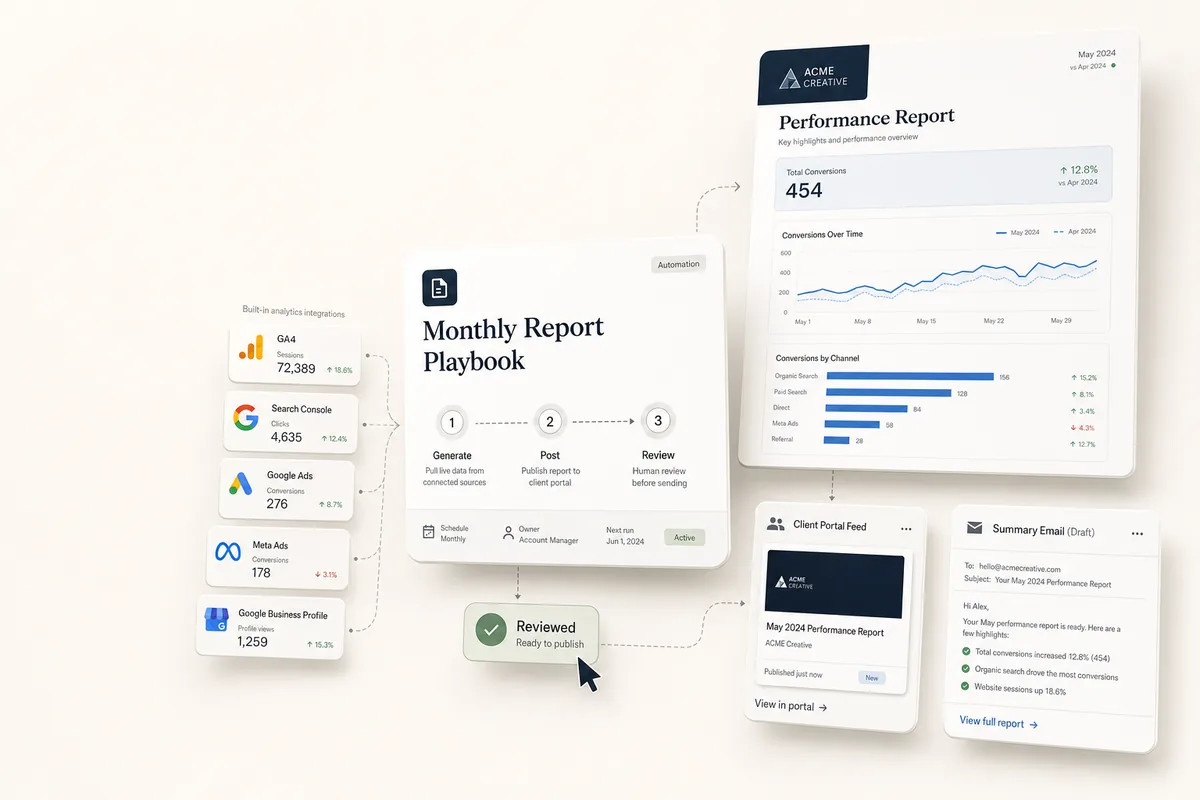
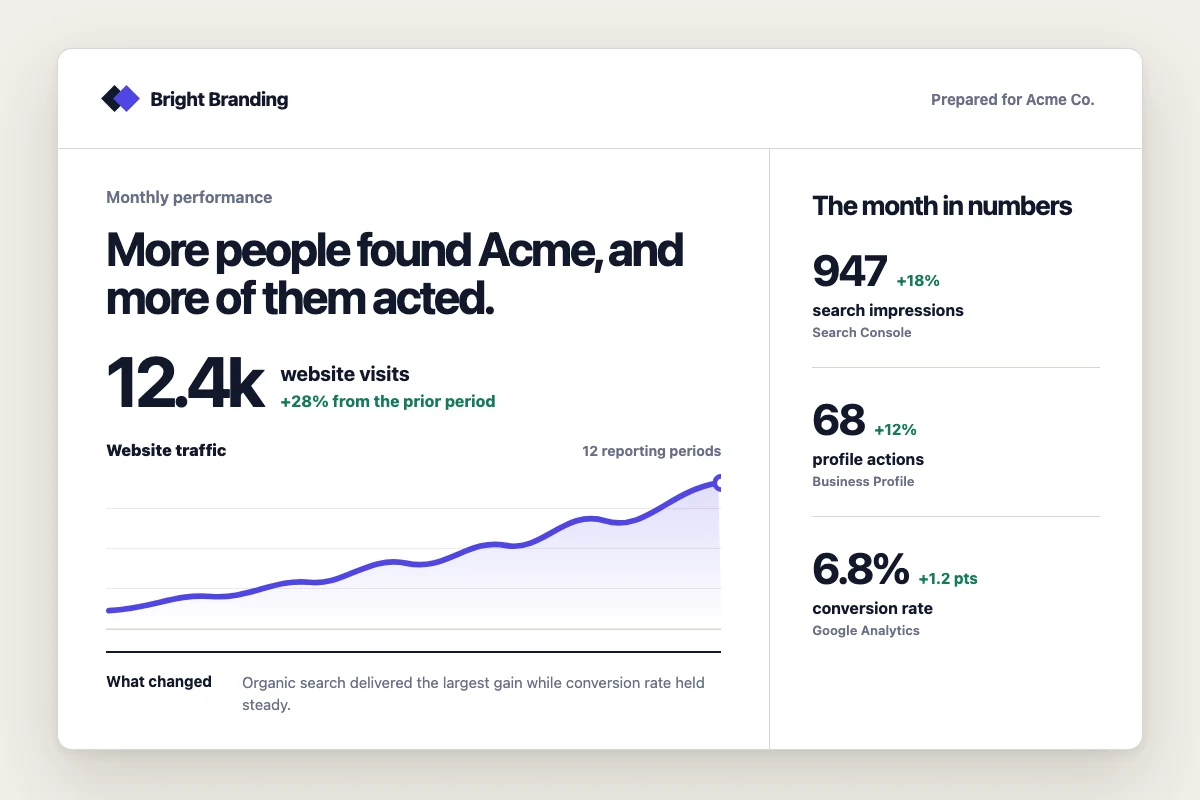
A branded report lands in the client's feed with a summary email drafted alongside it, built from GA4, Search Console, Google Ads, Meta Ads, and Google Business Profile. No third-party reporting tool required.
What this does
Most agencies pay for a separate reporting tool (Agency Analytics, SEMrush, DashThis) to pull client data into monthly reports. Lifted Work has GA4, Search Console, Google Ads, Meta Ads, and Google Business Profile integrations built in. This playbook uses those integrations to pull analytics data, render a branded HTML report using your client’s report template, post it to the client’s feed, and draft a summary email. A review task lands on your desk before anything goes live.
Best for
Agencies running SEO, paid media, or full-service digital marketing who send monthly reports to clients.
How the chain works
Template 1: Generate Monthly Report. Pulls data from every connected platform, looks up completed tasks and milestones for the month, then renders the client’s report template as HTML with real data in every section. When done, books Template 2.
Template 2: Post Report to Feed & Draft Email. Posts the rendered report to the client’s feed so it’s visible on their portal. Drafts a summary email to the client contact with highlights and a link to the full report. When done, books Template 3.
Template 3: Review Report, Feed & Email. Check the rendered report, verify the feed post on the client’s portal, review the draft email, and send.
Requirements
-
Connect the client’s analytics accounts. Go to Settings > Integrations and connect the relevant Google or Meta accounts. The AI auto-discovers which accounts belong to which client based on website URLs and account metadata.
-
Create a report template. Go to the client’s overview and create a Report Template. The How to Create a Report Template how-to walks through three ways to do this. The Monthly Performance Report Template guide has a complete template you can copy. Each client can have their own template tailored to their services.
-
Set the due date to the last business day of the month. Template 1 needs Autocomplete enabled so it fires on that date.
How to use it
-
Create a task from “Generate Monthly Report” for your client, due on the last business day of the month. If you also run the Monthly Account Review playbook, schedule this one for the morning so its rendered report is posted to the feed before the account review chain runs in the afternoon.
-
On its due date, it autocompletes: pulls analytics, renders the report, posts it to the feed, drafts the email, and books the review task. To run it earlier, mark it complete yourself or click Run Prompt.
-
The review task lands in your queue the next day. Check the report, review the draft email, send it, done.
Customize for your services
Not every client has every platform. The prompt handles this with “if the client runs ads” and “if the client has a GBP listing.” Sections with no data get skipped.
-
SEO-only clients. Remove the paid and GBP sections from the prompt. Add more GSC detail: “Break out branded vs. non-branded queries. Show pages gaining and losing impressions.”
-
Paid media clients. Add Google Ads keyword-level data: “Show top 10 keywords by conversions and any search terms that should be added as negatives.”
-
Local businesses. Add more GBP detail: “Include review count and average rating, plus any new reviews and whether they’ve been responded to.”
-
E-commerce. Switch the GA4 kpi_profile to
ecom in the prompt for revenue and purchase metrics.
Tips
-
Set up the report template once. It’s reusable across months. The AI finds it automatically by client.
-
Review the first report manually. Run it without Autocomplete the first month. Once you’re happy, turn on Autocomplete for future months.
-
The comparison period matters. The prompt says “comparing to the previous month.” Change this to “comparing to the same month last year” for seasonal businesses.
-
Make it recurring. Add a line to Template 1’s prompt: “Also duplicate this task for the last business day of next month.”
-
The email is a draft. Nothing sends automatically. The review step is where you read the draft, edit if needed, and send.
-
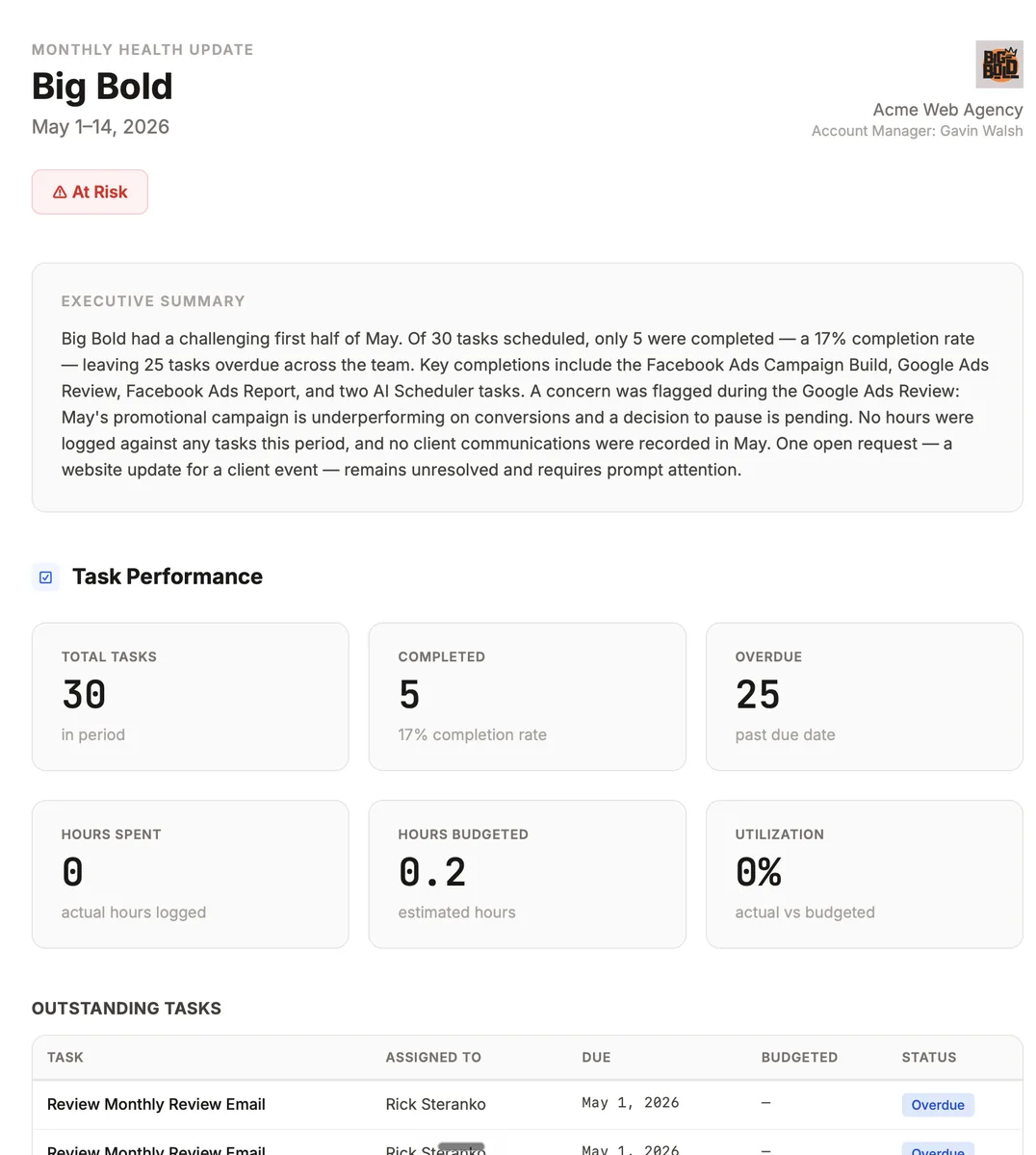
Pair with the Monthly Account Review playbook. That one summarizes operational activity (tasks, hours, requests, milestones) and drafts a recap email. Run both and the account review pulls in report links automatically.