AI Playbooks Features Pricing Integrations Guides How-Tos

Build a Brand Guide That Powers Every AI Image

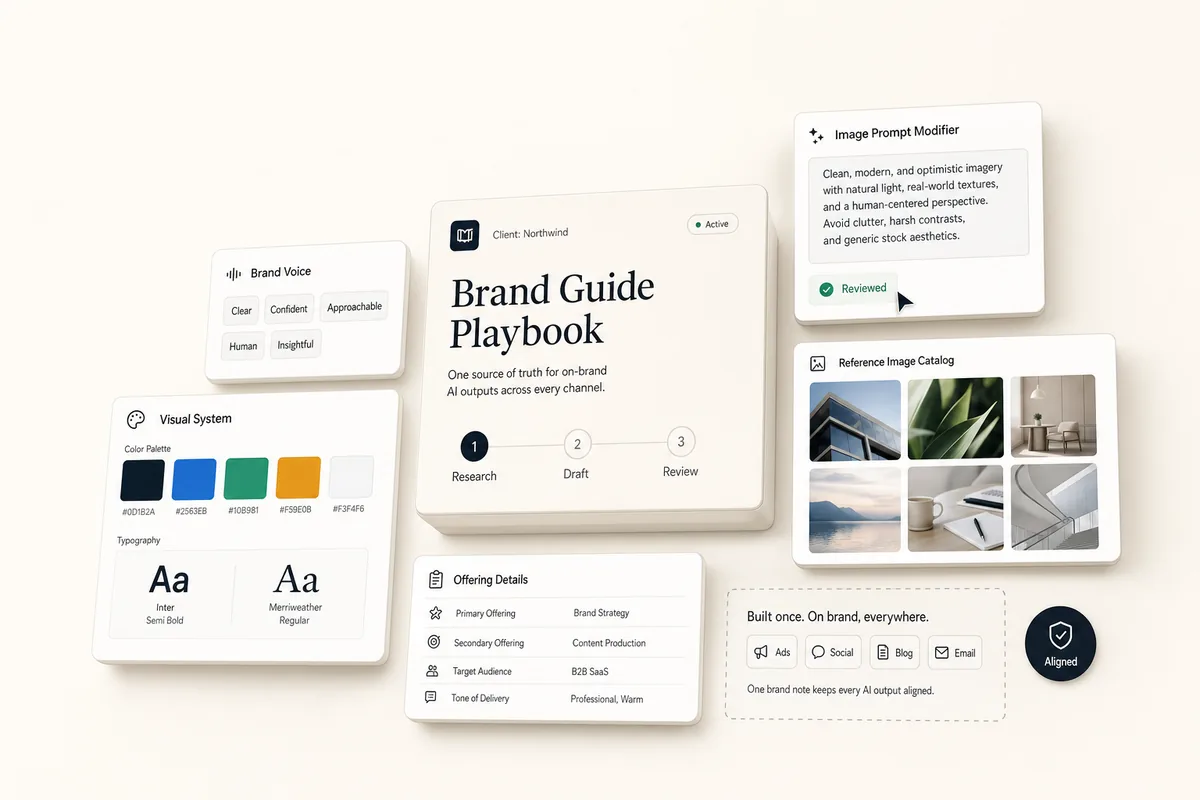
Two chained tasks that reverse-engineer the client's brand into a single note covering voice, visual system, photography direction, a catalog of real reference images from their site, and a 50 to 75 word prompt modifier that prepends to every future AI image. Every downstream image playbook reads this note on every run.

What this does

This playbook reverse-engineers the client’s brand into a single Brand Guide client note. The note covers voice, visual system (colors with hex values, fonts), photography direction, product details, and ad creative style. It also contains a 50 to 75 word Image Generation Prompt Modifier that gets prepended to every image the AI generates for this client. A catalog of real reference images is harvested from the client’s own website, each with its alt text and a one-sentence description of what it shows. Downstream image playbooks pick the best-matching image from the catalog and pass its URL to Gemini as a visual style reference.

Best for

Any client you plan to generate images for. Run it once during onboarding, then refresh it when the client rebrands or shifts creative direction. The Brand Guide note is what the ad creative playbook and the blog-to-social playbook read on every run to keep images on-brand.

How the chain works

Template 1: Research and Draft Brand Guide. Budget-bounded on purpose: 3 page browses on the client’s site (homepage, About, one product or services page), 2 competitor browses max, 8 images max in the catalog. Uses browse_website with detail: full on the client’s pages to get both the copy and the image list (src, alt, dimensions) in one call. Drops logos, icons, and decorative junk; evaluates the candidates and keeps the 8 best. The AI only has URL, alt text, and page context to work with (it cannot see the actual image pixels), so descriptions are inferred from those signals. When signal is low, it uses a generic “subject unclear” label so the human reviewer knows to confirm visually. Reads the client profile for colors, fonts, and the overview (already extracted, no re-crawl). If Meta Ads or Google Ads are connected, one call each for the top 5 spending ads. Creates or updates a client note titled exactly “Brand Guide”. When done, books Template 2.

Template 2: Review Brand Guide. You review the note, tweak the Prompt Modifier paragraph (the single most important field for downstream image quality), prune any reference images the AI kept that don’t belong, fix any wrong descriptions, and approve. The approved note is live for every image playbook from that point on.

Requirements

  • Template 1 needs Autocomplete and Run on complete enabled.
  • The client’s website URL should be set so the AI can browse it.
  • If the client profile already has brand colors and fonts extracted (automatic when the website is set), Template 1 uses them as the starting point.
  • Optional but useful: Meta Ads and Google Ads integrations. Template 1 pulls the client’s top-spending ads for the Ad Creative Style section if either is connected, and skips silently if not.

How to use it

  1. Create a task from “Research and Draft Brand Guide (1/2)” for your client. If you already know the client’s main competitors, paste up to 2 homepage URLs into the [COMPETITOR URLS HERE] line in the Lifty Prompt before scheduling. This is the most reliable way to get the Competitive differentiation section right.
  2. On its due date, it autocompletes. To run it earlier, mark it complete yourself, set the due date sooner, or open the task and click Run Prompt.
  3. The review task lands in your queue. Open the “Brand Guide” client note on the client’s Activity screen, tighten the Prompt Modifier paragraph, prune any reference images that don’t belong, and mark complete.
  4. The note is now live. When you run the Ad Creatives playbook or the Blog to Social playbook, the AI reads this note automatically and uses the Prompt Modifier and reference images on every generation.

Tips

  • The note title matters. The downstream playbooks look for a note titled exactly “Brand Guide”. Do not rename it.
  • The budget is intentional. 3 site browses, 2 competitors, 8 images in the catalog. The note is read by every downstream image playbook on every run, so a tighter note keeps ongoing token cost low. If you want more images, paste them into the note yourself during review. If you want richer competitor analysis, expand the Competitive differentiation field manually.
  • Paste in competitors if you know them. The Competitive differentiation section is only as good as the competitor list. Paste 2-3 URLs into the Lifty Prompt before scheduling. If you skip this, the AI looks for competitors in the client profile overview, and if nothing is there it writes “Competitors not confirmed” rather than inventing ones.
  • Ground the Ad Creative Style section in real spend. If the client has Meta Ads or Google Ads connected, the AI pulls their top-spending ads over the last 90 days to anchor this section in what has actually worked, not guesses.
  • The Prompt Modifier is the whole game. Every image the client ever generates starts with this paragraph. Spend your review time here. Rewrite it in your own voice if the AI’s draft feels generic.
  • Add reference images the AI missed. If the client has a photo library, a Dropbox, or product shots they use in email campaigns, paste those URLs into the Reference Images section by hand. The AI is limited to what it finds on the public website.
  • Re-run after a rebrand. If colors, fonts, or creative direction change, run this playbook again. It updates the existing note rather than creating a duplicate.
  • Pairs with the Ad Creatives playbook and the Blog to Social playbook. Both read the Brand Guide note on every run.

Credits

The Brand DNA approach this playbook is built around, and the Image Generation Prompt Modifier concept specifically, come from a public prompt walkthrough shared by Will Sartorius and the Adcrate team: Nano Banana 2 Prompt Document and their YouTube walkthrough. We have adapted it to fit our tools and workflow.


The templates

Paste these into Settings → Task Templates in your Lifted Work account. Create a template group, add each template in order. When you create tasks from these templates, the AI picks up client context automatically.

Sign in to add
1.

Research and Draft Brand Guide (1/2)

20 min budgeted Auto-complete: on Run AI on complete: on Tags: brand, research, strategy
Lifty Prompt

Reverse-engineer this client’s brand into a single note titled exactly “Brand Guide”. This note is read on every future AI image generation for this client (ads, social graphics, anything), so precision compounds — a tight note yields consistent images across dozens of runs, a loose one yields drift. Keep it efficient though: capture signal, evaluate briefly, write. Hard budget: 3 site browses, max 2 competitors, max 8 images in the final catalog. For the image catalog specifically, evaluate the candidates and pick the 8 best brand references — not the first 8 that pass the filter.

Competitor URLs (optional — paste up to 2 full URLs, or leave the line blank): [COMPETITOR URLS HERE]

Step 1: Pull what we already know. Read the client profile for the machine-extracted brand config: primary, secondary, and accent color hex values, heading and body fonts, the primary logo URL, and the overview description field. The overview sometimes contains competitors or positioning. Do not re-browse the site for colors or fonts — they are already in the profile.

Step 2: Browse three pages on the client’s site. Exactly three browses, in this order. Use type page_content with detail full on each (that returns markdown plus the full image list with src/alt/width/height in one call):

  1. Homepage
  2. About page (skip only if there is no About page — do not substitute)
  3. One product or services page (pick the most prominent from the homepage nav)

Do not browse a fourth page. Do not re-browse a page. Do not use page_seo_audit — we do not need SEO metadata.

From these three pages, capture:

  • Voice: five adjectives describing how they write. Pull from hero copy and product descriptions, not generic marketing words.

  • Photography style: one sentence on lighting, one on color grading, one on composition, one on subject matter.

  • Typography in use: headline weight, body weight, letter-spacing, distinctive treatments (e.g. all-caps nav, italic taglines).

  • Color application: how primary is used vs accent. Background color. CTA button style.

  • Product details: physical description, materials and finishes (matte, gloss, translucent, embossed), label and logo placement, distinctive packaging features.

  • Ad creative style hints: formats, text overlay style, photo vs illustration bias, UGC presence.

  • Image catalog: across all three pages, evaluate the candidate images and pick the 8 best for brand reference. Best = most likely to be useful as a style anchor for future ads: real people, products, lifestyle scenes, environments, or brand-styled compositions. Skip logos, nav icons, social icons, decorative flourishes, thumbnails under 400px wide, and anything obviously stock.

    Critical: you cannot see the actual pixels. All you have is the URL, the alt text, and the surrounding page context (heading above the image, nearby copy). Infer the description from those three signals only. Do not invent details you cannot verify.

    • Strong signal (descriptive URL and/or descriptive alt): quote what you can infer. E.g. “shows: head roaster Mark (alt: ‘Our head roaster Mark’), homepage hero slot”
    • Mid signal (generic URL, weak alt, but clear page context): describe the placement. E.g. “shows: image on the About page under the ‘Our Story’ heading — likely a team or founder photo”
    • Weak signal (generic URL like /img_4837.jpg, missing or non-descriptive alt, no context): use a generic label. E.g. “shows: homepage image, subject unclear — reviewer to confirm visually”

    One short line per image, no paragraphs. Stop once you have the 8 strongest candidates.

Step 3: Browse up to 2 competitors. Get competitor URLs from the [COMPETITOR URLS HERE] line first. If blank, check the client profile overview. Do not guess competitors from general industry knowledge.

If you have URLs, browse each with type page_content (no detail: full — we don’t need their image list). One browse per competitor, max 2. For each, write one sentence only: “Competitor X uses {color} and {photography style}; differentiation: {one phrase}.” Stop.

If no URLs are available, write “Competitors not confirmed — agency to add during review” in the Competitive differentiation field and move on. No competitor browses in that case.

Step 4: Capture the client’s own ad creative history (only if integrations are connected). If meta_ads_report is available, one call: view ads, last 90 days, limit 5 (not 10), sorted by spend. Capture just the top ad names and their copy angles. Do not deep-dive into performance metrics; the Ad Creative Style section needs direction not data.

If google_ads_report is available, one call with the same parameters.

Skip both silently if not connected.

Step 5: Check for an existing Brand Guide note. Call list_client_notes filtered by title “Brand Guide” for this client. If one exists, you will update it. If not, you will create a new one with this exact title.

Step 6: Assemble the note. The note body must follow this exact markdown structure so downstream playbooks can parse it:

# Brand Guide — {Client Name}

## Brand Overview
- **Tagline**: …
- **Voice adjectives (5)**: …, …, …, …, …
- **Positioning**: one sentence on what the brand stands for
- **Competitive differentiation**: name 2-3 direct competitors and what visually differentiates this client from them

## Visual System
- **Primary font**: …
- **Secondary font**: …
- **Primary color**: #RRGGBB
- **Secondary color**: #RRGGBB
- **Accent color**: #RRGGBB
- **Background colors**: …
- **CTA color and style**: …

## Photography Direction
- **Lighting**: …
- **Color grading**: …
- **Composition**: …
- **Subject matter**: …
- **Props and surfaces**: …
- **Mood**: …

## Product Details
- **Physical description**: …
- **Materials and finishes**: … (matte, gloss, translucent, embossed, textured)
- **Label and logo placement**: …
- **Distinctive packaging features**: …

## Ad Creative Style
- **Typical formats**: …
- **Text overlay style**: …
- **Photo vs illustration**: …
- **UGC usage**: …
- **Offer presentation**: …
- **Top-spending past ads (if available)**: …

## Image Dos and Don'ts
<!-- Free-form bullet list. Capture rules grounded in what you actually observed on the site, the packaging, or past ads. If you cannot observe it, do not invent it. -->

- **Do**: …
- **Do**: …
- **Don't**: …
- **Don't**: …

## Image Generation Prompt Modifier
<!-- 50-75 word paragraph. This is the single most important field in this note. It is prepended to every image the AI generates for this client. Include exact colors with hex values, font descriptions, photography direction (lighting, color grading, composition), and mood. Be concrete, not generic. Example of a strong modifier: "Brand aesthetic: minimalist editorial photography. Soft diffuse daylight, low contrast, warm neutral color grade. Primary accent #2563EB deep blue used sparingly against off-white #FAFAF7 backgrounds. Typography is Playfair Display for headlines, Inter for body, tight tracking. Composition favors generous negative space with the subject slightly off-center. Mood: confident, quiet, premium. Avoid stock imagery cliches, avoid busy compositions." -->


{Write the modifier here as a single paragraph of prose, not bullet points. Do not include the comment block in your output.}

## Reference Images
<!-- Max 8 images total, grouped by source page. Each entry is one line. Descriptions are inferred from URL, alt text, and page context — the AI cannot see the pixels, so weak-signal entries use a generic "subject unclear" label that the human reviewer confirms visually. -->


### From the homepage
- ![{alt or short label}]({url}) — shows: {inferred description, or "homepage image, subject unclear"}

### From the About page
- ![{alt or short label}]({url}) — shows: {inferred description, or "About page image, subject unclear"}

### From the product / services page
- ![{alt or short label}]({url}) — shows: {inferred description, or "product page image, subject unclear"}

Fill every field using what you pulled in Steps 1-4. If a field does not apply (e.g., no packaging for a services business), write Not applicable. Do not leave placeholders. In Reference Images, omit any sub-heading with no images rather than leaving an empty one.

Step 7: Save the note. If a Brand Guide note already existed, call update_client_note with its id and the full new body. If no note existed, call create_client_note with title “Brand Guide” and the body above.

When done, create a task from the “Review Brand Guide (2/2)” template assigned to me, due tomorrow.

2.

Review Brand Guide (2/2)

20 min budgeted Tags: brand, review
SOP / Details

AI has built a Brand Guide for this client and saved it as a client note with a catalog of real reference images pulled from the client’s website. Review the note carefully before the team starts generating ad and social images from it. This note is the source of truth for every image playbook.

  1. Open the client note. Go to the client’s Activity screen and find the note titled “Brand Guide”.
  2. Check the Brand Overview section. Do the five voice adjectives match how this brand actually sounds? Is the positioning statement accurate? Are the competitors correct? If competitors read “not confirmed”, run this playbook again after pasting 2-3 competitor URLs into the Lifty Prompt.
  3. Check the Visual System. Are the hex colors right? Are the font names correct (not generic “sans-serif”)? If the AI guessed, fix it.
  4. Rewrite the Image Generation Prompt Modifier if needed. This is the single most important field in the entire note. Every image the client ever generates starts with this paragraph. Read it out loud. Does it actually capture how this brand should look? Tighten the language. Add specifics the AI missed. Cut anything generic.
  5. Check the Reference Images catalog. Open each image. The AI picked these from URL and alt-text metadata without seeing the actual pixels, so entries may read “subject unclear” when it could not infer confidently. This is your job: click through and either rewrite the description to match what you actually see (that’s what downstream playbooks match on) or drop the image if it turns out to be off-brand. Add URLs by hand for assets the AI missed — Dropbox links, email-campaign hero images, anything not on the public site.
  6. Approve the note. Once the modifier is tight and the reference images catalog is solid, the Brand Guide is live. The Ad Creatives playbook and the Blog to Social playbook both read this note on every run.
  7. Mark this task complete.

Make your future better

Adopt at your own pace
Guided setup
Cancel anytime
Easy start