
Lifty AI
An AI assistant that already knows your clients: their brand, work, emails, analytics, and history. Ask it to summarize, draft, report, or build the next task.
AI That Already Has the Context
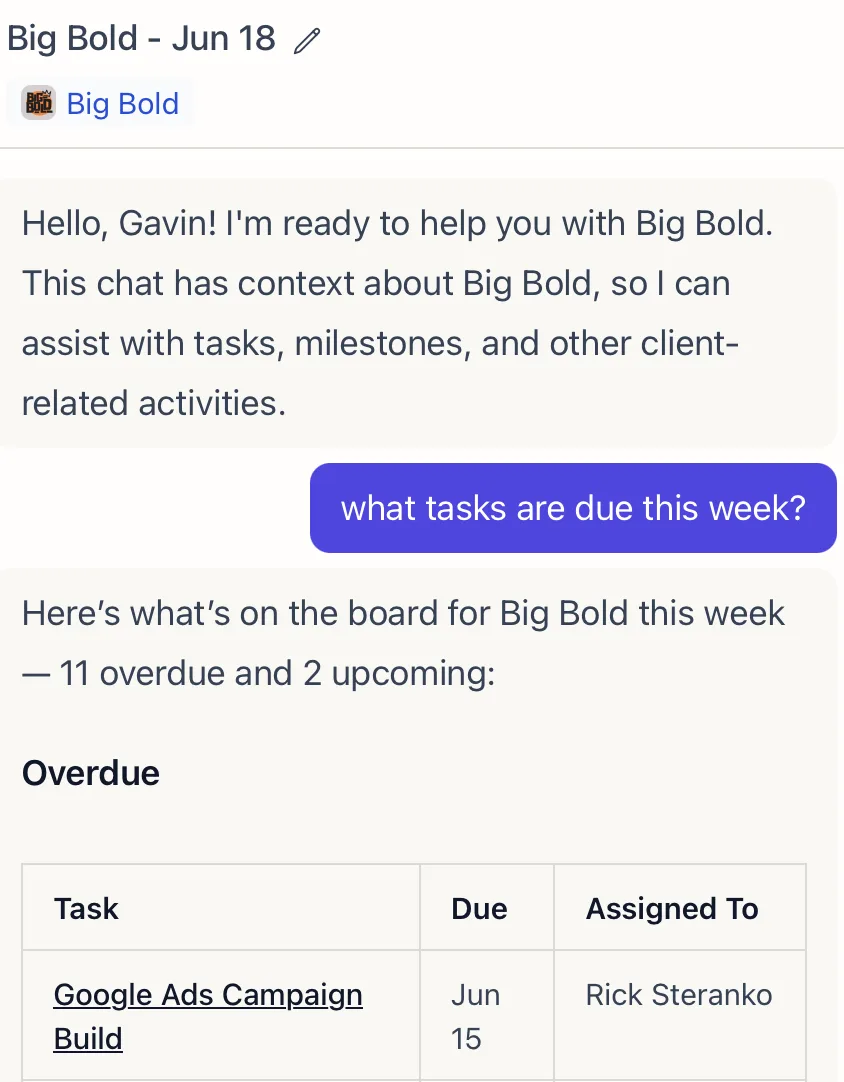
Open a chat with ChatGPT and you start with a blank prompt. Open Lifty and the client is already loaded. That is the difference. Lifty is built into Lifted Work, so it works from the same clients, tasks, emails, and analytics your team does.
What Lifty Knows
Lifty reads the context your agency has already built:
- Each client’s brand, website, services, and description
- Tasks, deliverables, and the full history of work delivered
- Emails and correspondence synced from Gmail or Zapier
- Client notes your team has left
- Google Analytics, Search Console, Google Ads, Meta, and Business Profile data, when connected
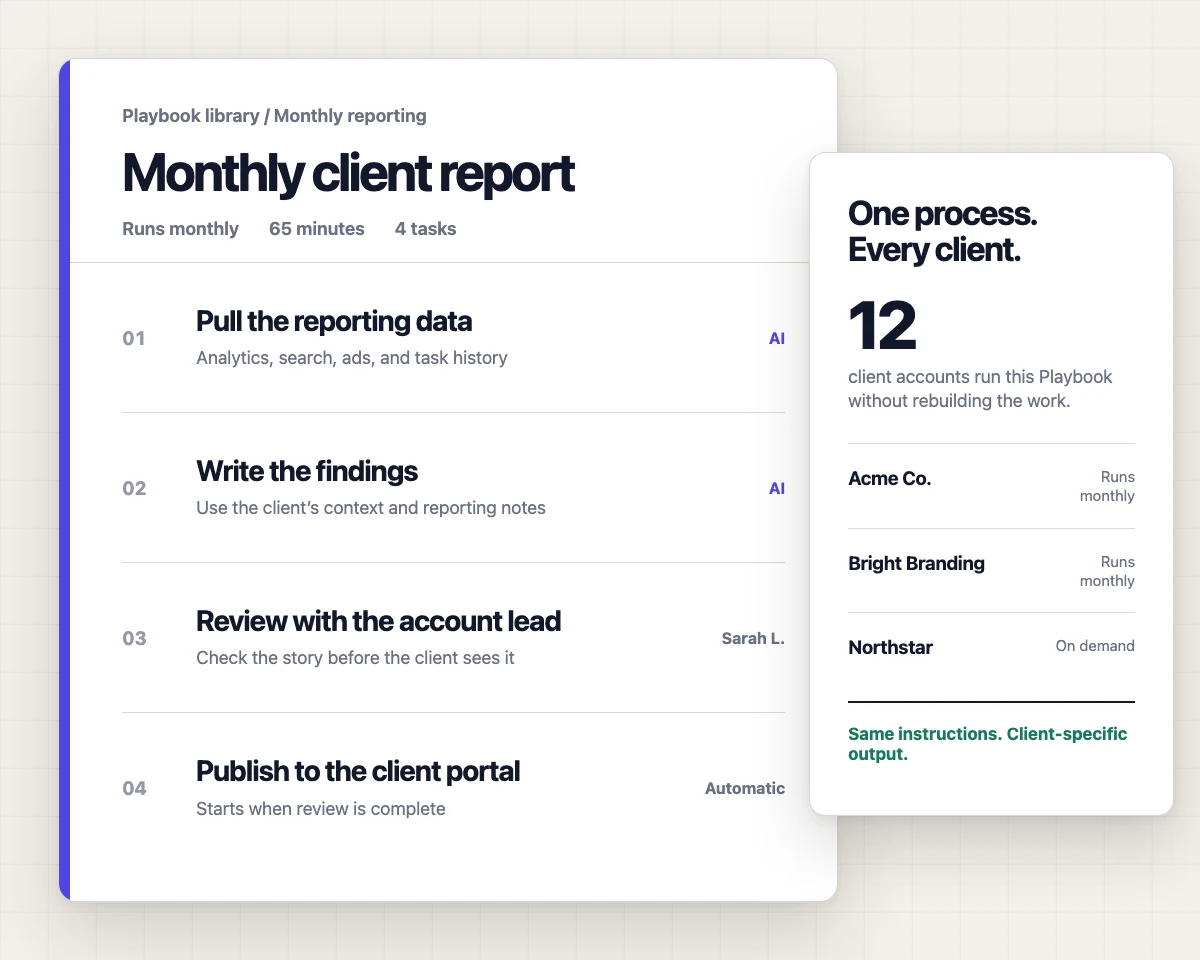
- SOPs and task templates
You never paste the client in. It is already there.
What Lifty Does
- Summarize incoming emails for a client, or the work completed this week
- Draft client emails to the right contact
- Research a website, audit SEO, and extract brand colors, fonts, and logos
- Render branded PDF or HTML reports from your templates
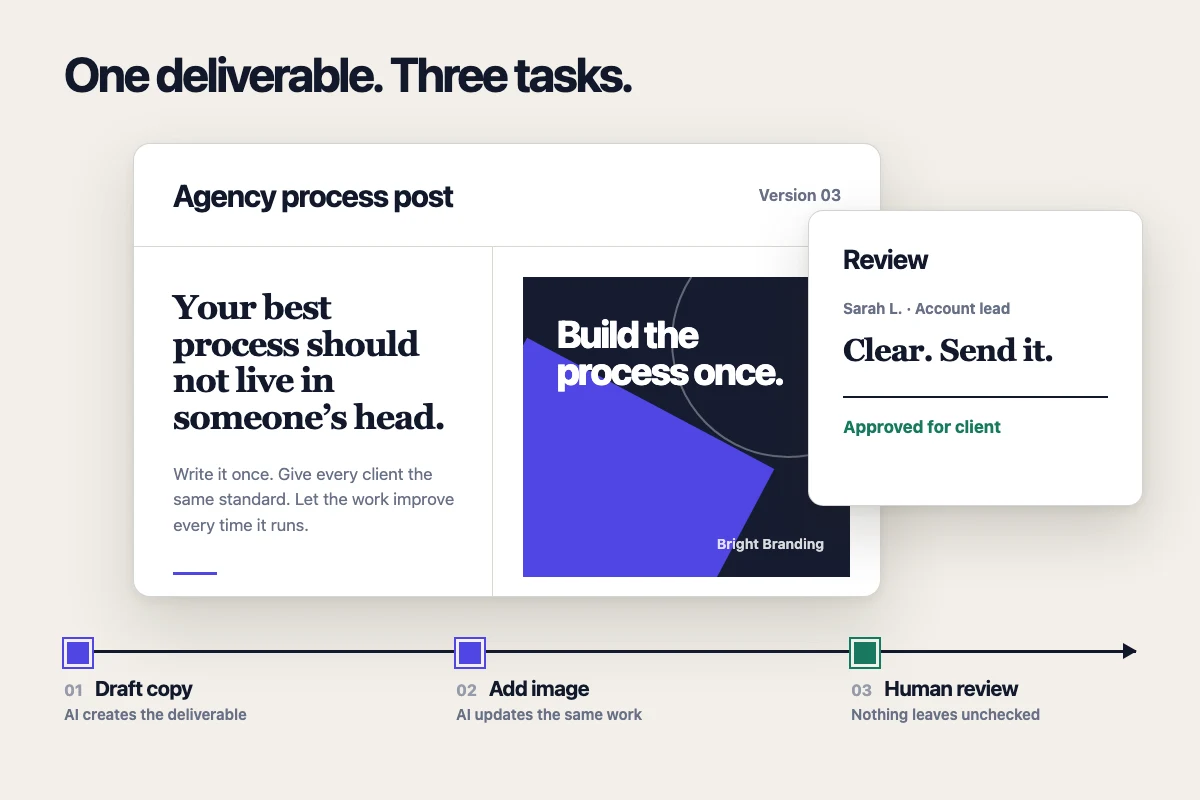
- Create deliverables that move through your normal revision and approval flow
- Schedule tasks, post to a client’s feed, browse the web, and generate images
You Stay in Control
You decide what Lifty can do alone and what needs review. Limit which tools it can use per task, keep client-facing work behind approval, and review anything before it reaches a client. Every action it takes is logged.
Where to Find It
Lifty lives in a sidebar you can open from anywhere, and it picks up the context of the screen you are on. Open it from any client tab and that client is in context. The Lifty AI Sidebar how-to has more examples. Prefer your own AI tool? Connect Claude or ChatGPT through the MCP integration.
Related features
-
01
Task Templates: SOPs and AI Prompts
Build reusable task blueprints with human instructions, AI prompts, and after-completion chaining.
02
Capacity Calendar
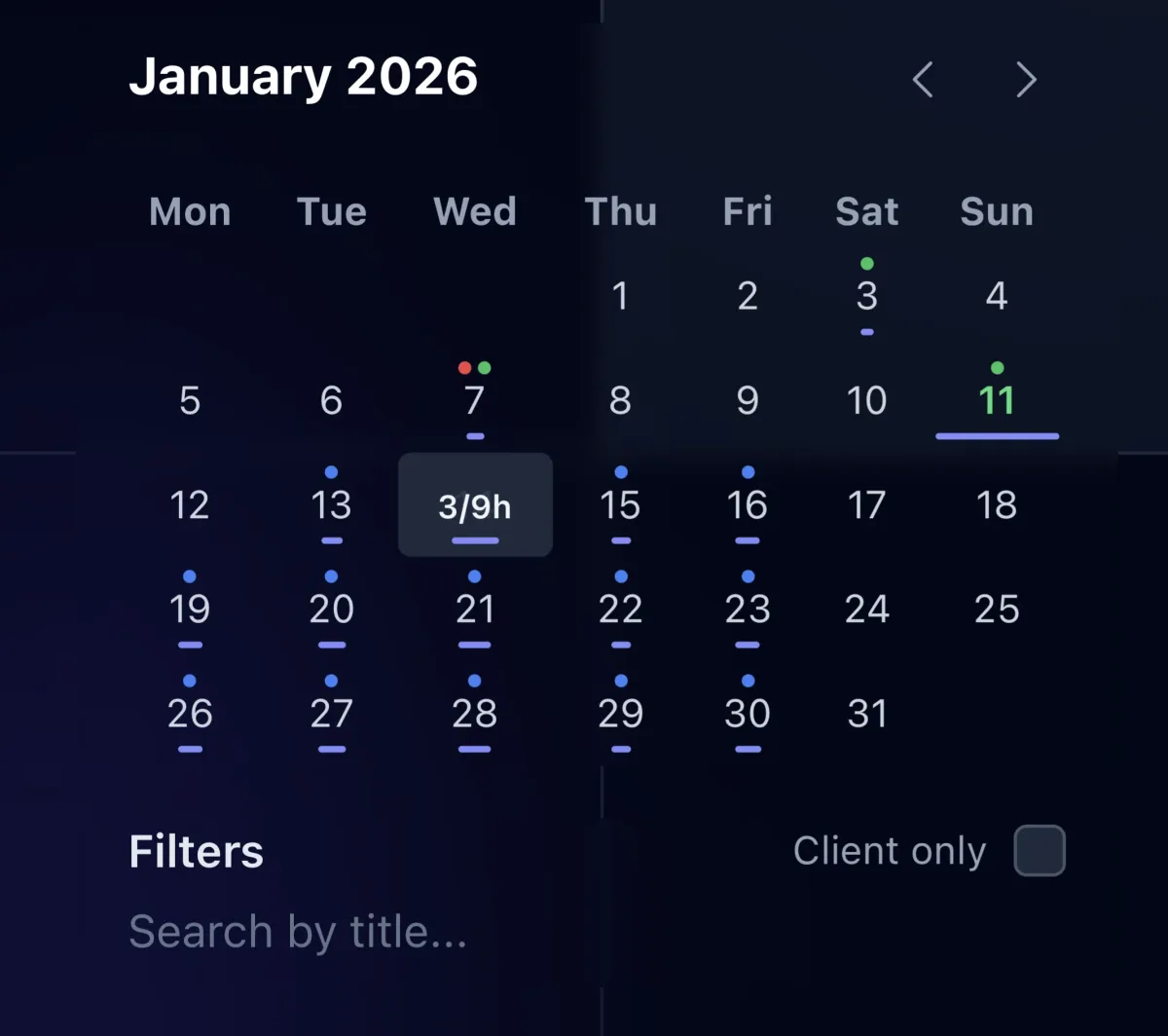
See assigned hours per person per day, spot who is overloaded before deadlines slip, and rebalance work in a few clicks.
03
Time Tracking and Budgets
Track time while the work happens, compare it to each task's budget, and see where hours go by client, task type, or team member.
Task Comments and @Mentions
Keep the conversation on the work. Comment on tasks, @mention teammates to unblock them, and let AI read the thread for context.